
Slack
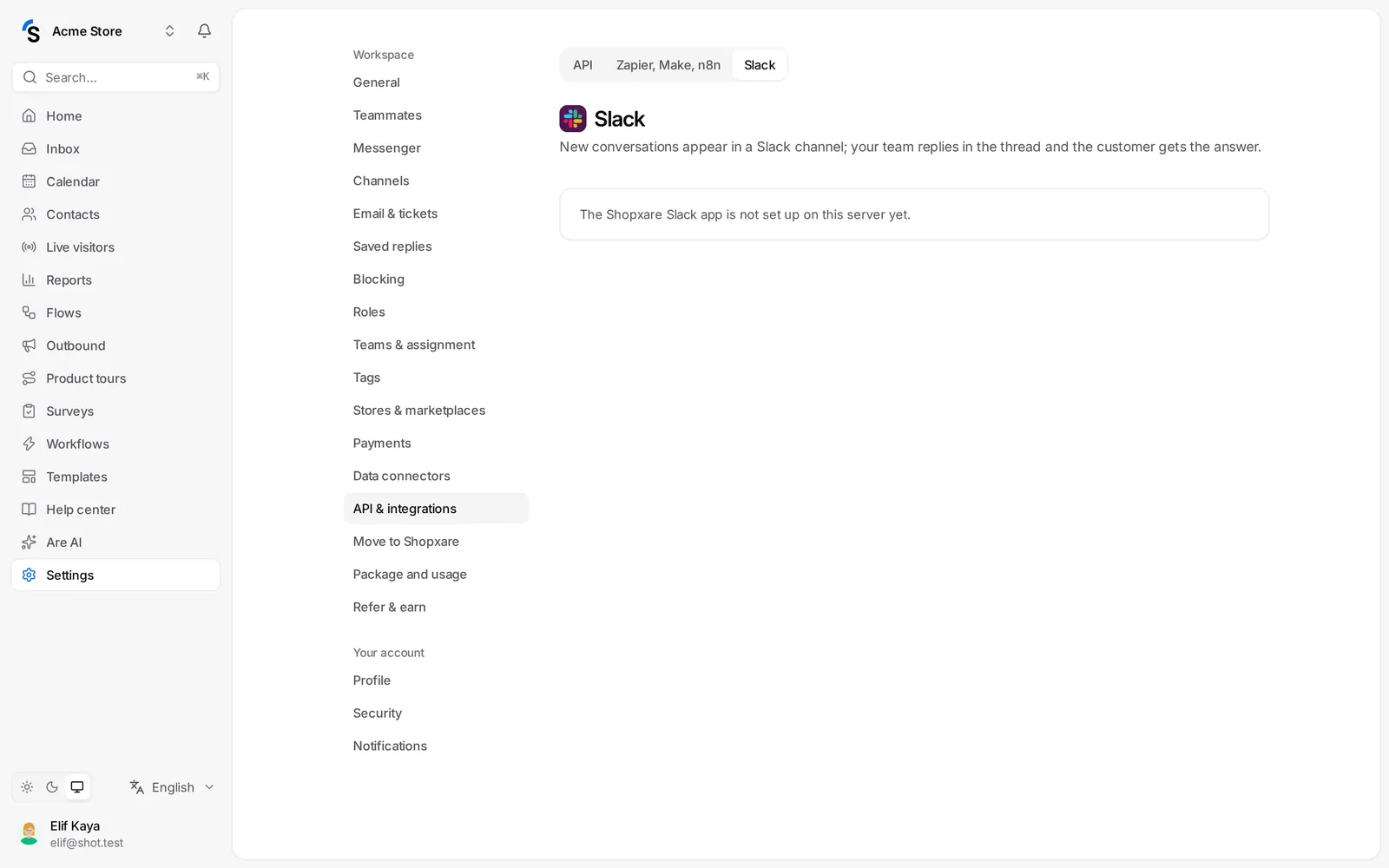
New conversations appear in a Slack channel, and your team can reply to customers right from the thread.
Connect Slack and your team sees new conversations in a channel — and can answer the customer without leaving Slack.
Connect
- Go to Settings → API & integrations and open the Slack tab.
- Click Add to Slack and approve access for your Slack workspace.
- Choose a channel where new conversations should appear. For a private channel, invite the Shopxare app to it first, then click Reload channels.
What it does
- Post every new conversation — each new conversation is posted with the visitor's name and first message, and a link to Open in Shopxare.
- Add later customer and team messages to the thread — the whole conversation stays readable in Slack.
- Reply from Slack — teammates reply in the thread, and the reply is sent to the customer as them. This works when their Slack email is the same as their Shopxare email; otherwise the reply is not sent and Slack shows why.
Internal notes written in Shopxare are not posted to Slack.
Disconnect
Click Disconnect Slack. New conversations stop appearing in the channel; the messages already posted stay in Slack.
Still stuck? Contact