
Help center articles
Write, translate, publish and import articles and collections.
Write an article
- Go to Help center and click New article.
- Give it a title and choose its collection.
- Write the text. The editor has headings, lists, links, images, quotes and code. Headings become the article's table of contents.
- Add a short Summary — it is shown in search results and lists.
- Click Save draft while you work, and Publish when it is ready.
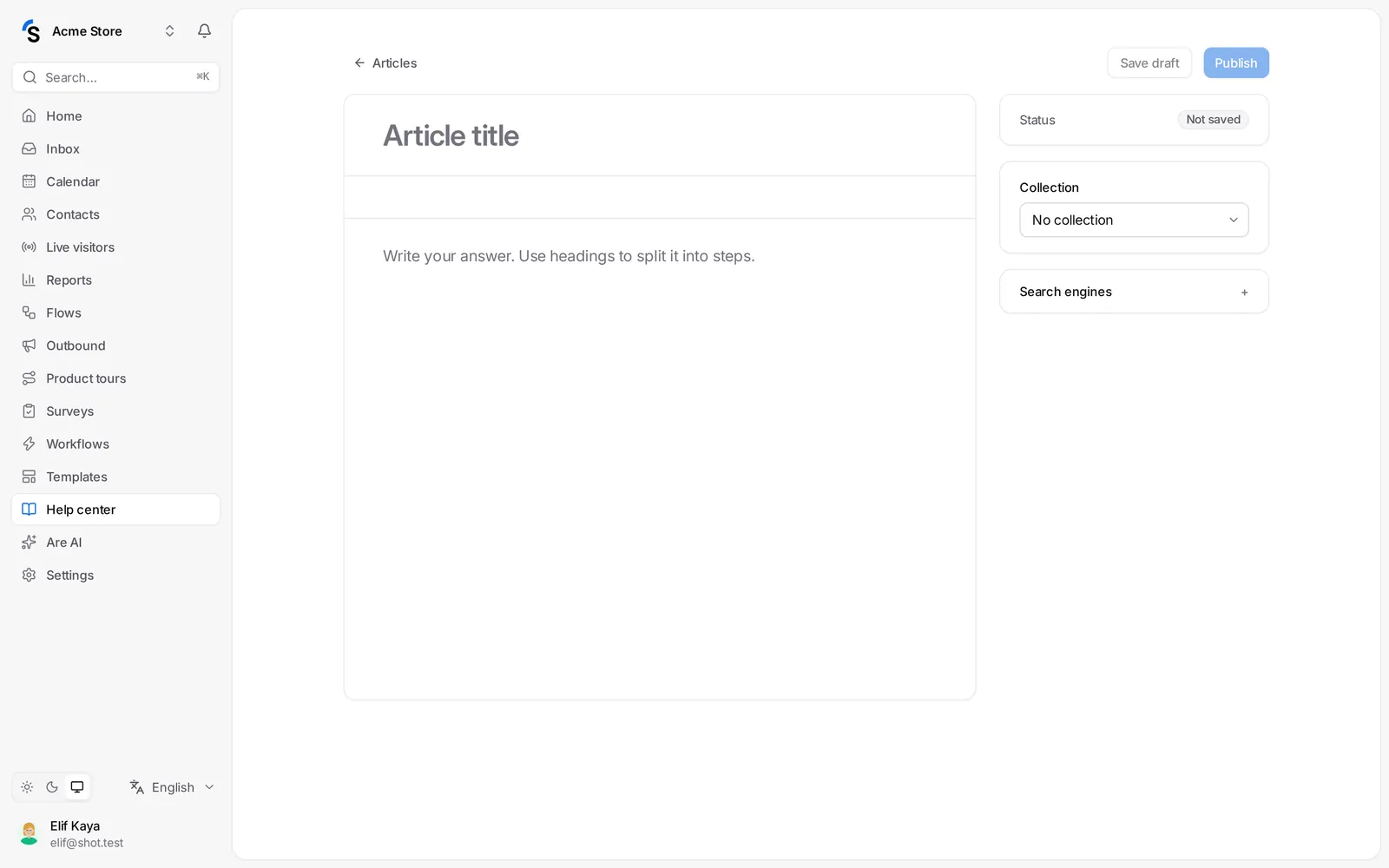
A draft is only visible to your team. A published article is live on your help center and Are AI can use it.
Edit a live article
When you change a published article, visitors keep seeing the published text until you click Publish changes. Until then the editor shows that your changes are not live yet. To take an article off the help center, unpublish it; to remove it for good, delete it.
Languages
Each article can have a version in every help center language, and each language has its own draft and published text:
- Open the article and pick a language in the language menu.
- Click Add a language. You can start from another language with Copy … text.
- Translate, then publish that language.
Visitors see the article in their language; if it does not exist in their language, the main language is shown.
Search engines (SEO)
Under SEO set the title and description search engines show. Without them, the article's title and summary are used.
Collections
Click New collection and give it a name, a description and an icon. To make it a sub-collection, choose the collection it sits in under Inside. Drag collections on the Help center page to change their order. Deleting a collection does not delete its articles; they move out of it.
Import articles
Click Import on the Help center page:
- From a website — enter the address of your current help center (Intercom, Zendesk, Freshdesk, Help Scout, Crisp, HubSpot, Document360 or any docs site). Up to 500 articles are read in the background with their collections and images, and the images are copied to Shopxare. The text is copied as it is — AI only helps to recognise articles and to group the ones without a collection.
- From a CSV file — the columns
titleandbody(HTML or plain text), and optionallycollection("Orders > Shipping"),language,status,slug,excerptandkey(rows with the same key are translations of one article). Download a sample file from the import window.
Imported articles are drafts unless you tick Publish right away. Articles whose title already exists are skipped, so importing twice is safe.
Still stuck? Contact