
The inbox
Read and answer every conversation — Messenger, email, Telegram and marketplaces — together with your team.
The inbox is where your team reads and answers every conversation: the Messenger on your website, email, tickets, Telegram and marketplace messages all arrive here.
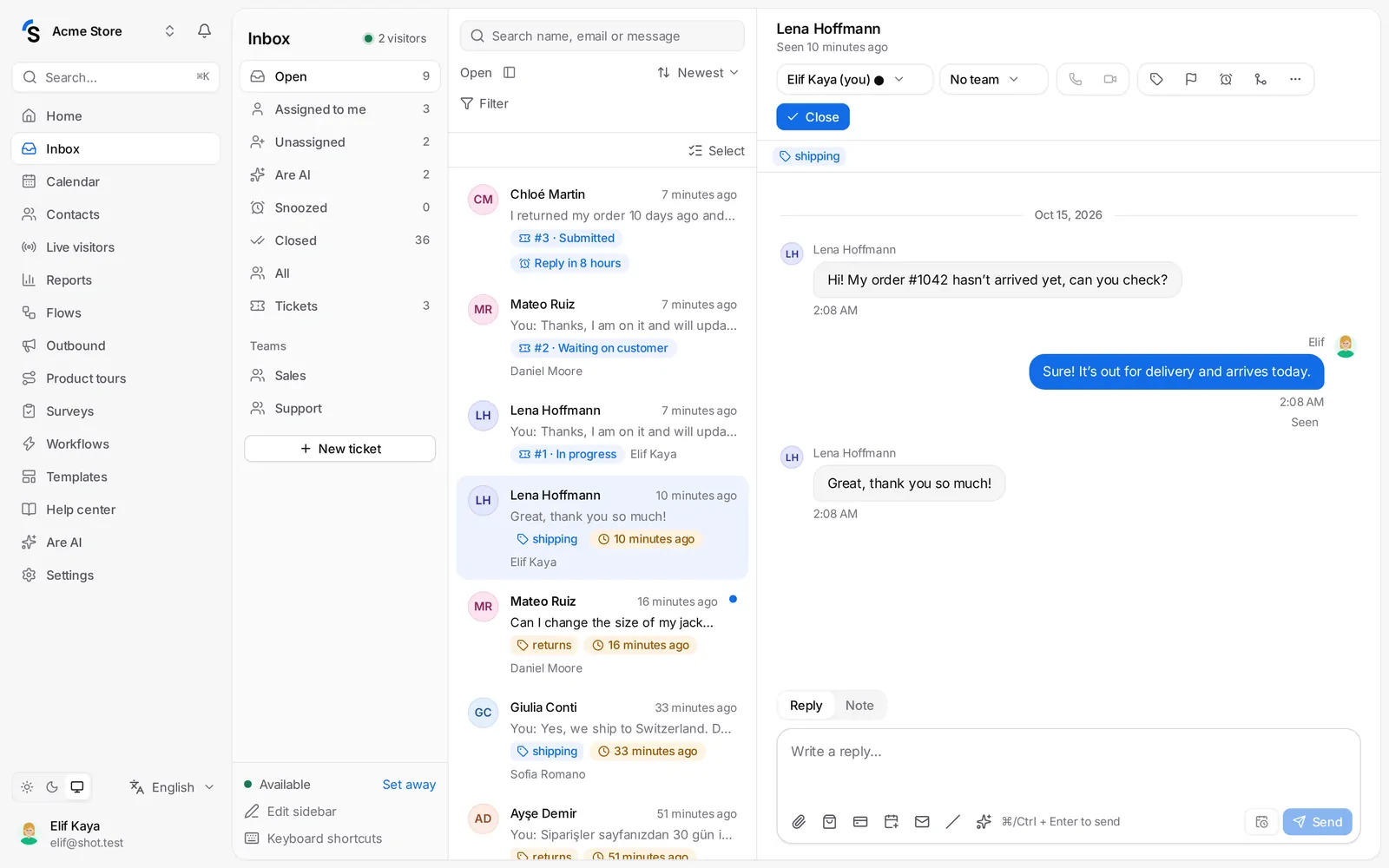
Views and filters
The menu on the left has Open, Assigned to me, Unassigned, Snoozed, Closed, All, Tickets and Are AI (conversations the AI agent is answering), each with a count. Your teams appear below them.
- Filter by tag, priority and channel. Sort by Newest, Oldest or Waiting longest.
- Save view keeps the current list, team and filters one click away. Tick Share with the whole team to give everyone the same view.
- Edit sidebar chooses what the menu shows and in which order.
- Use the search box to find a name, an email address or words from a message.
Reply or write a note
- Open a conversation and write in the box at the bottom.
- Reply goes to the customer. Note is internal — only your team sees it. Type
@in a note to mention a teammate; they get a notification. - Press ⌘/Ctrl + Enter or click Send.
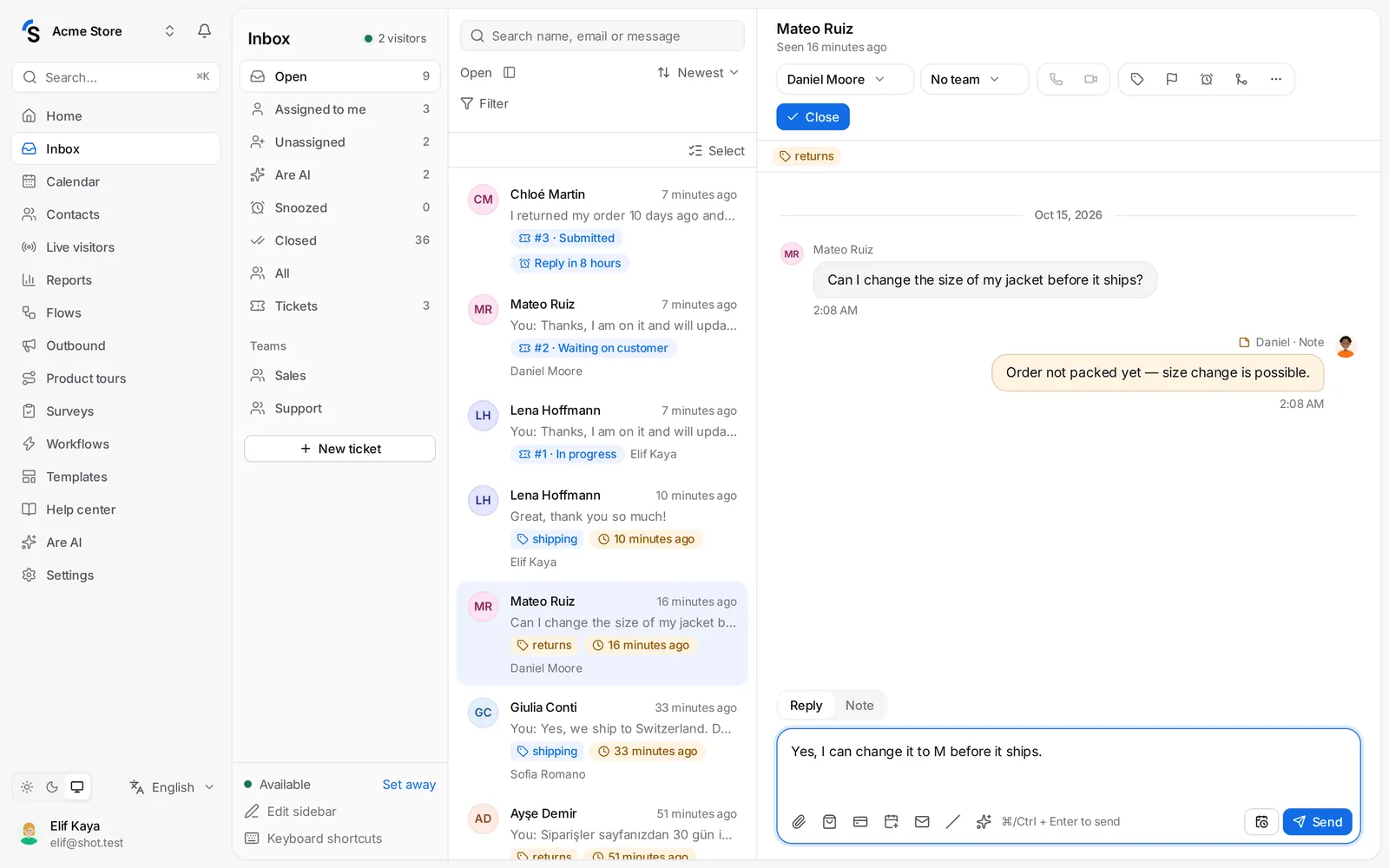
In the box you can also:
- Attach file and add emoji.
- Type
/to insert a saved reply. - Click the clock next to Send to Send later — see Snooze, send later and auto-close.
- Write in your own language and let live translation translate it.
When you open a conversation nobody on the team has answered yet, a suggested opening message appears in grey — press Tab to send it, or just start typing.
Your messages show Sent, Delivered and Seen. A failed message shows Not sent. Retry. Made a mistake? Hover over your message and click the bin to delete it for everyone — it disappears in the customer's Messenger too and shows This message was deleted. An email that was already sent can't be recalled.
Customers' voice messages can be played at different speeds, and Convert to text writes them out.
Work as a team
From the top of a conversation:
- Assign it to a teammate or a team.
- Mark it as Priority.
- Snooze it until later — it opens again by itself.
- Close it when it is done; Reopen it if needed.
- Add Tags to sort and find conversations. Type a new name to create a tag.
- Merge two conversations of the same person into one.
- Turn it into a ticket with Convert to ticket — see Tickets and email.
- Block a spammer — see Blocking and spam protection.
You see when a teammate is viewing or replying to the same conversation (… is replying), so two people don't answer at once. Tick several conversations in the list to assign, tag or close them together.
When Are AI is answering a conversation, click Take over to continue yourself.
Urgent and upset customers
With Urgency and mood detection (Settings → General), messages from upset or urgent customers are marked Upset or Urgent and the conversation moves to high priority.
The contact panel
On the right you see who you are talking to: the page they are on, their device and local time, first and last visit, attributes, companies, orders from a connected store and past conversations. Click Open full profile for everything — see Contacts.
View in the top bar shows or hides the contact panel and the inbox menu.
Online and away
The switch next to your name sets you Available or Away. Automatic assignment only gives new conversations to available teammates. The Messenger shows your team as online while someone has Shopxare open — any page of the web or desktop app, or the mobile app in the foreground.
At the top of the inbox you see how many people are on your website right now; click it to open Live visitors. If the live connection drops, the inbox shows Limited, keeps working and catches up when it is back.
Keyboard shortcuts
Press ? to see all shortcuts: j/k next and previous conversation, r reply, n note, a assign to me, e close, / search and more.
Still stuck? Contact