
Notifications
Choose what you are notified about — in the app, in the browser, on your phone and by email — and set quiet hours.
Go to Settings → Notifications. These settings apply to you in this workspace; every teammate chooses their own.
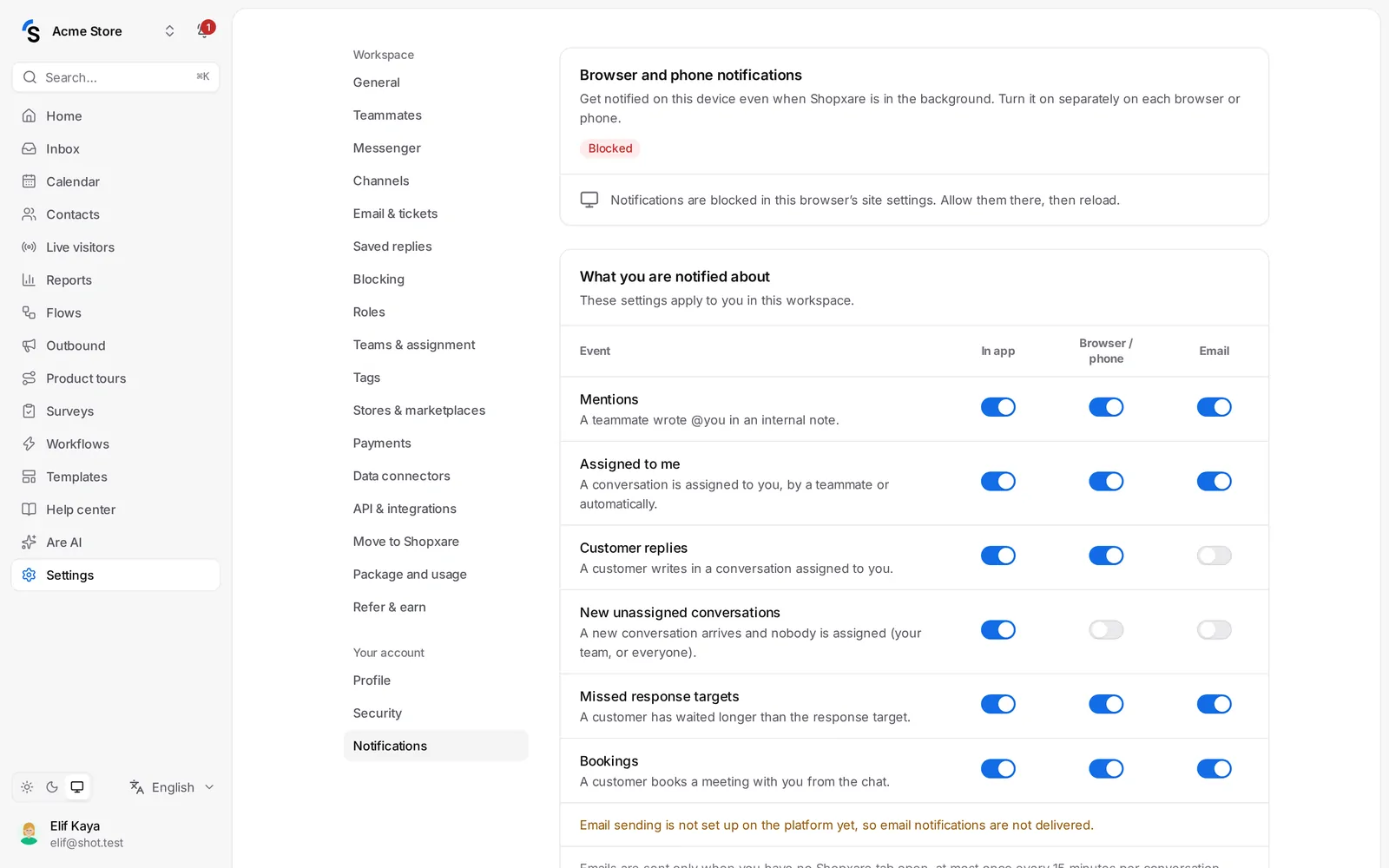
What you are notified about
For each event, choose In app, Browser / phone and Email:
- New unassigned conversations — a new conversation arrives and nobody is assigned.
- Assigned to me — a conversation is assigned to you, by a teammate or automatically.
- Customer replies — a customer writes in a conversation assigned to you.
- Mentions — a teammate wrote @you in an internal note.
- Missed response targets — a customer has waited longer than the response target.
- Bookings — a customer books a meeting with you.
Emails are sent only when you have no Shopxare tab open, so you are not notified twice.
Browser and phone notifications
Under Browser and phone notifications, click Turn on and allow notifications when the browser asks. You are then notified on this device even when Shopxare is in the background. Click Send a test to check. If the browser shows Blocked, allow notifications for Shopxare in the browser's site settings.
On your phone, the Shopxare app sends push notifications. When you read or answer a conversation on one device, the notification disappears on the others.
Desktop app
In the Mac and Windows app, Notifications on this computer shows system notifications when the window is in the background. Nothing appears? Check that notifications are allowed for Shopxare in your system settings.
Sound and quiet hours
- Sound plays a short chime for new in-app notifications. Pick a Tone: Bell, Chime, Digital, Pop or Soft.
- Do not disturb — no sound, browser or phone notifications between the hours you choose.
Still stuck? Contact