
Teach Are AI
Knowledge sources, short answers, procedures and learning from your team — everything Are AI uses to answer.
Are AI only answers from what you give it. The more of your real answers it knows, the more conversations it solves.
Sources
Go to Are AI → Knowledge. Under Sources you see everything the AI may use, with how many documents and pieces each has and when it was last read.
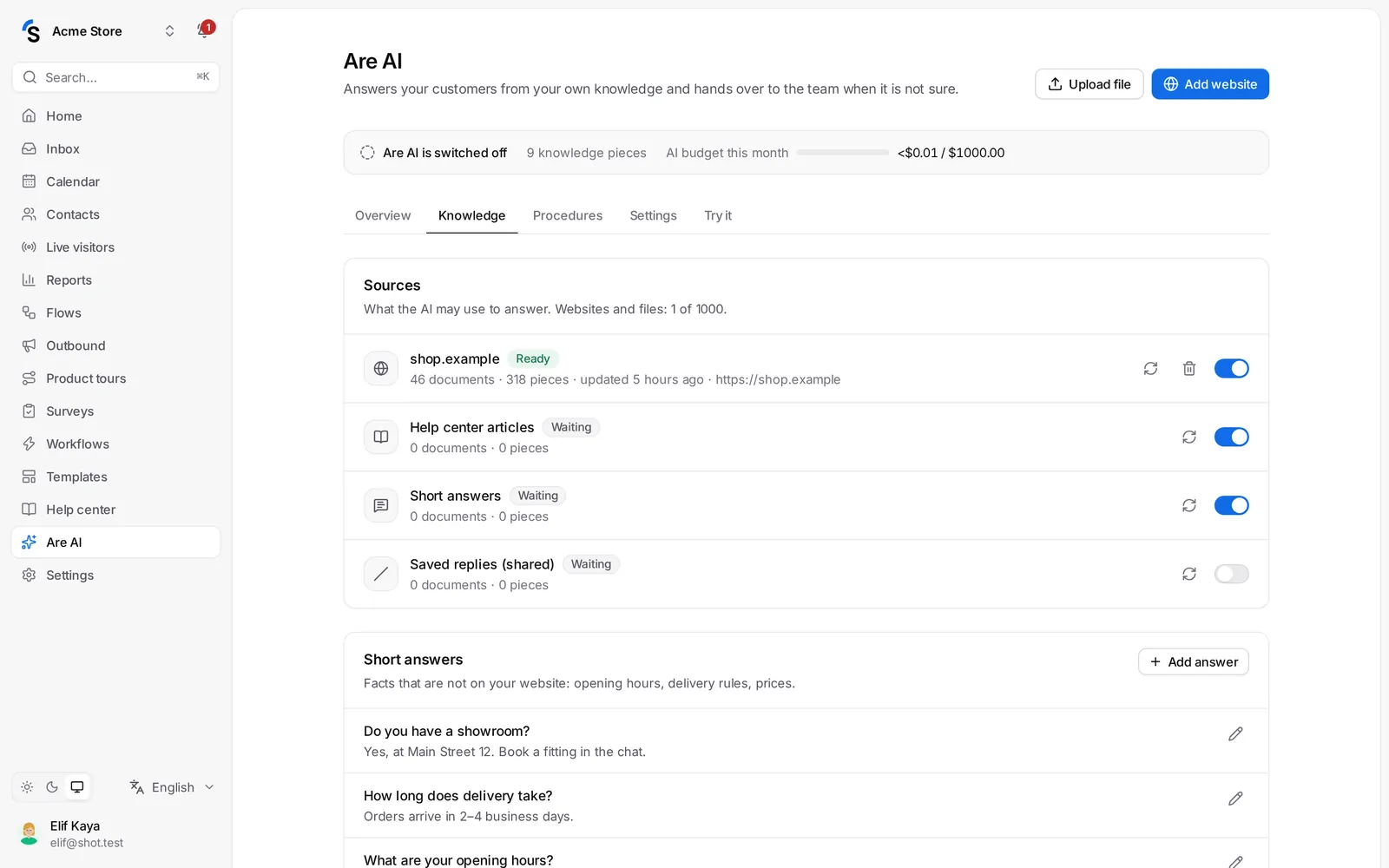
- Help center articles — your published articles, kept in sync when you publish, change or delete one.
- Saved replies (shared) — if Use shared saved replies is on in Settings.
- Short answers — see below.
- Websites — click Add website, enter the Address and choose How to read: Only this page, Sitemap (sitemap.xml) or Follow links on the site, with Max. pages. Click Start reading. Websites are read again every week; click Read again to refresh now.
- Files — click Upload file: PDF, DOCX, TXT, MD or CSV.
Are AI trusts your saved replies, short answers and help center articles most, then your website's information pages (shipping, returns, payment, contact, policies), then other pages, and product pages last. A website crawl reads the information pages first, spends at most 40 % of the pages on products, and skips carts, accounts and search results. Only public pages of the same site are read.
Short answers
Facts that are not on your website — opening hours, delivery days, a phone number. Under Short answers, click Add answer, write one Question and its Answer, and save. Keep it factual.
Procedures
A procedure teaches Are AI how your team handles a request, step by step — a return, an address change, a warranty claim.
- Open Are AI → Procedures and click New procedure — or start from a template.
- Give it a Name, for example Return request.
- Under When should Are AI use it?, describe the requests it is for: The customer wants to return or exchange a product.
- Under Steps, write each step as you would explain it to a new teammate: Ask for the order number and the email used for the order, Check that the order is less than 30 days old, Send the return link … Click Add step for each one.
- Save. The list shows how many steps each procedure has and how often it was used.
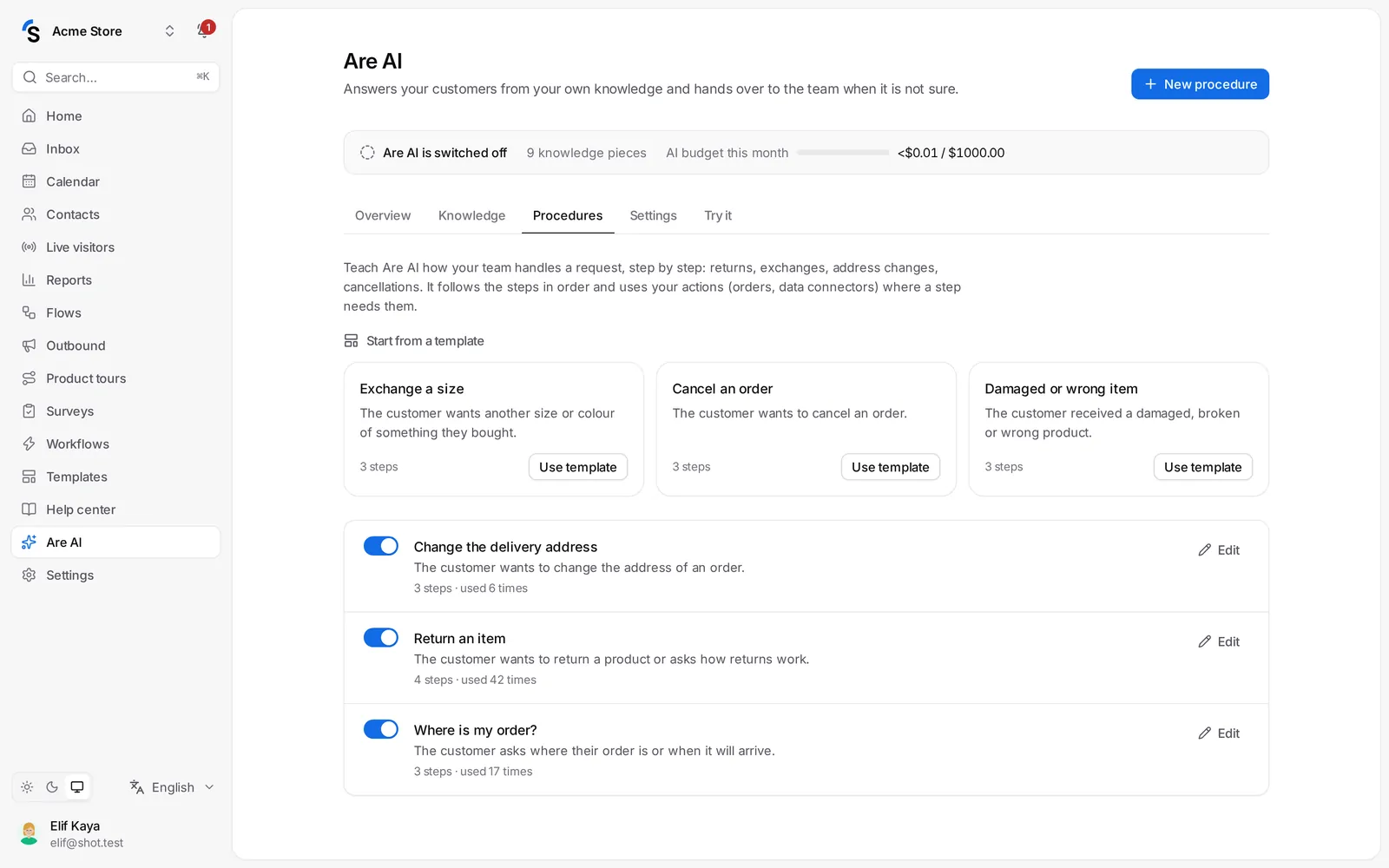
Tip: name the action a step should use ("look up the order") and Are AI uses your data connectors for it.
Learn from your team
In Are AI → Settings → Learning and privacy:
- Learn from successful conversations — some hours after a conversation closes, Are AI checks whether your team's answer is worth keeping. Suggestions appear in Overview → Suggested from conversations; click Review, edit if needed (nothing personal should remain) and Approve. Nothing is used without your approval.
- Learn automatically when the customer was clearly happy — with a high rating, a good survey score or an AI answer marked helpful, the answer is learned without review.
Answer what it couldn't
In Are AI → Overview, Questions the AI could not answer lists open questions. Click Answer, write it as you would tell a new teammate and click Save answer — the AI uses it from now on.
Still stuck? Contact