
The Messenger home
Background, greeting, home cards, tickets, announcements and quick links on the Messenger's home screen.
The home screen is the first thing visitors see when they open the Messenger. You decide how it looks and which cards it shows in Settings → Messenger.
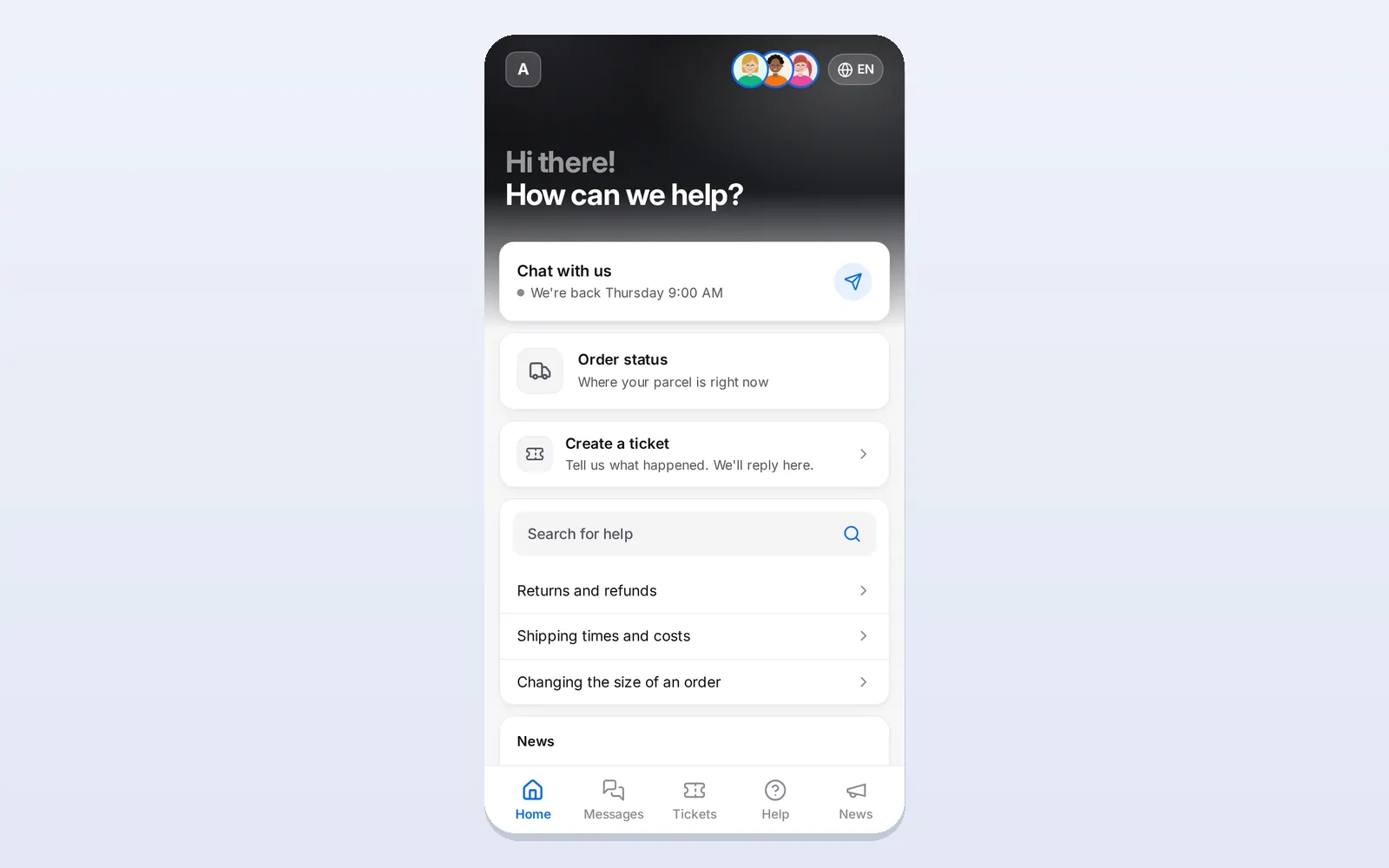
Background
In the Appearance tab, pick a Home background: Midnight (dark, the default), Graphite, Aurora, Ocean, Sunset, Forest, Berry, your brand color or Light. Choose Custom to set a start and an end color for your own gradient — the same color twice gives a solid background. On light backgrounds the text and buttons turn dark by themselves.
The greeting
Open the Home screen tab.
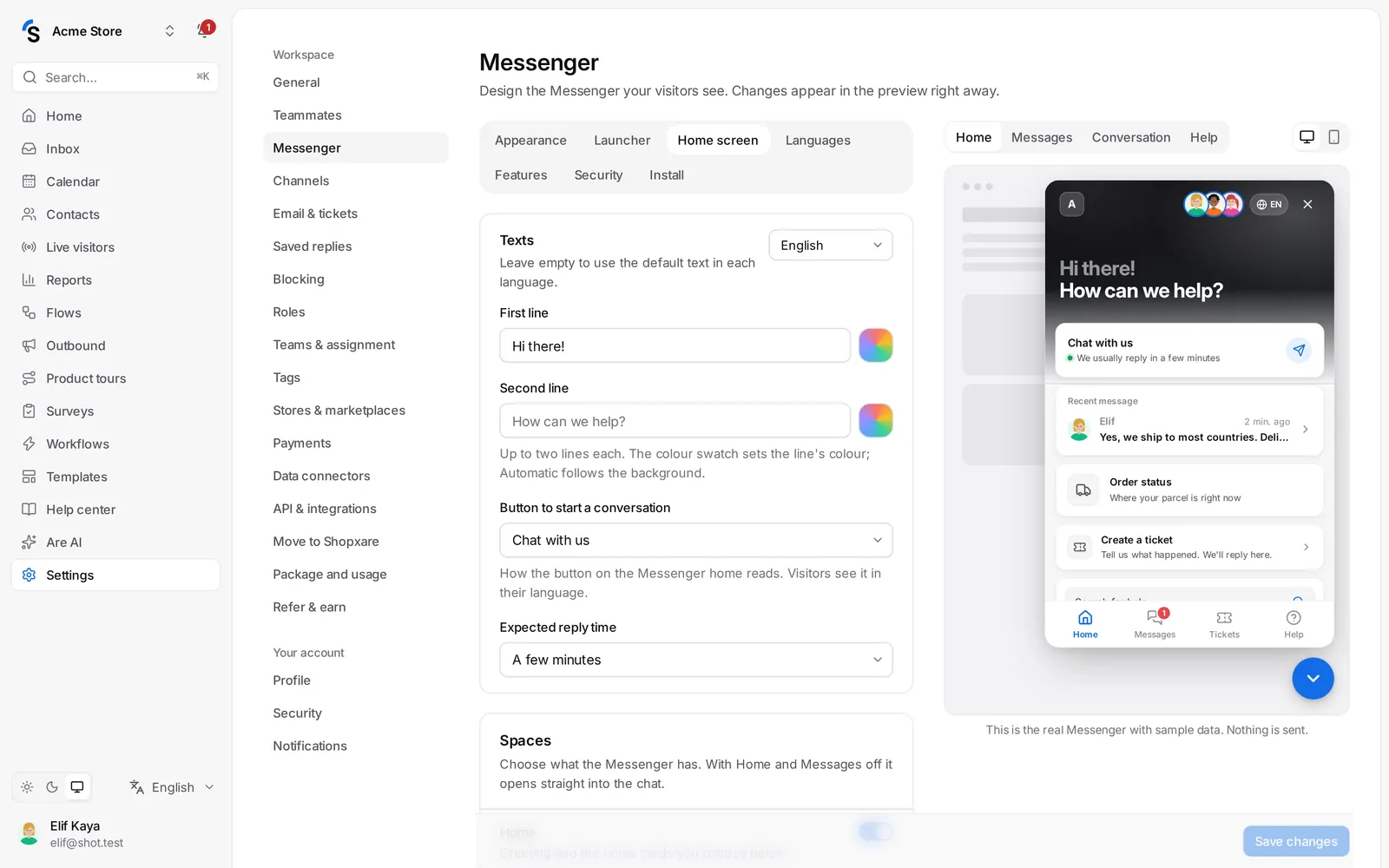
- Pick the language you are writing for in the menu at the top of the card.
- First line — for example Hi there! It is shown a little lighter.
- Second line — for example How can we help? It is shown in bold.
- Each line can be up to two lines long. Click the color swatch next to a line to choose its color, or keep Automatic so it suits the background.
- Button to start a conversation — choose how the button reads: Send us a message, Chat with us, Connect to live support, Talk to a person or Start a chat. Visitors see it in their language.
- Expected reply time — shown under the button: a few minutes, a few hours or within a day.
Leave a text empty to use the default text in each language.
Spaces
Under Spaces choose the tabs at the bottom of the Messenger: Home, Messages, Tickets, Help center and Announcements. The tab bar appears when two or more spaces are on. With Home and Messages both off, the Messenger opens straight into the chat.
Home cards
Under Home cards, switch each card on or off and change the order with the arrows:
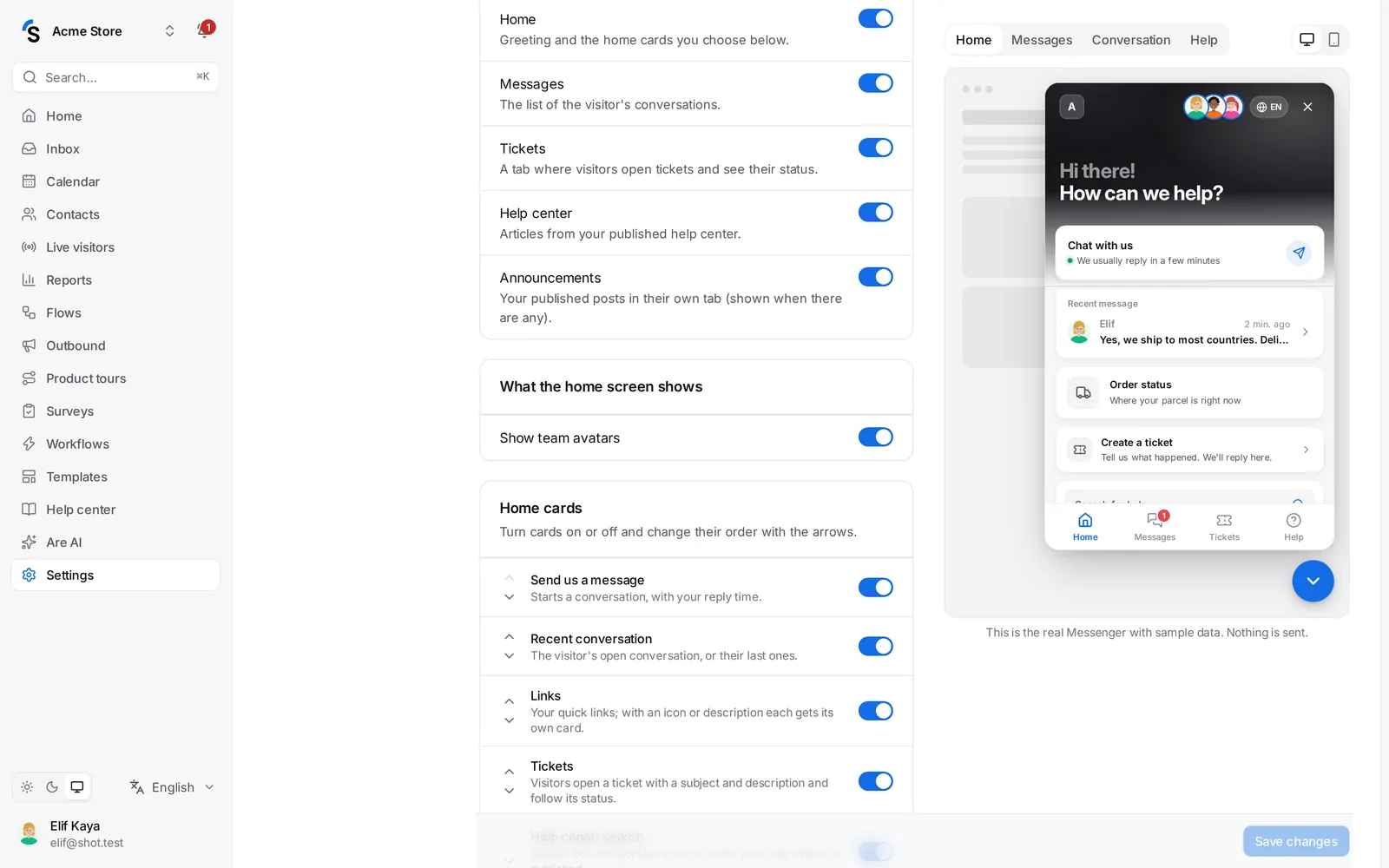
- Send us a message — starts a conversation, with your reply time.
- Recent conversation — the visitor's open conversation, or their last ones.
- Order tracking — when a store is connected.
- Tickets — visitors open a ticket and follow it (see below).
- Links — your quick links.
- Help center search — a search box and popular articles, when your help center is published.
- Announcements — your latest posts.
Show team avatars adds your teammates' photos to the top of the home screen.
Tickets
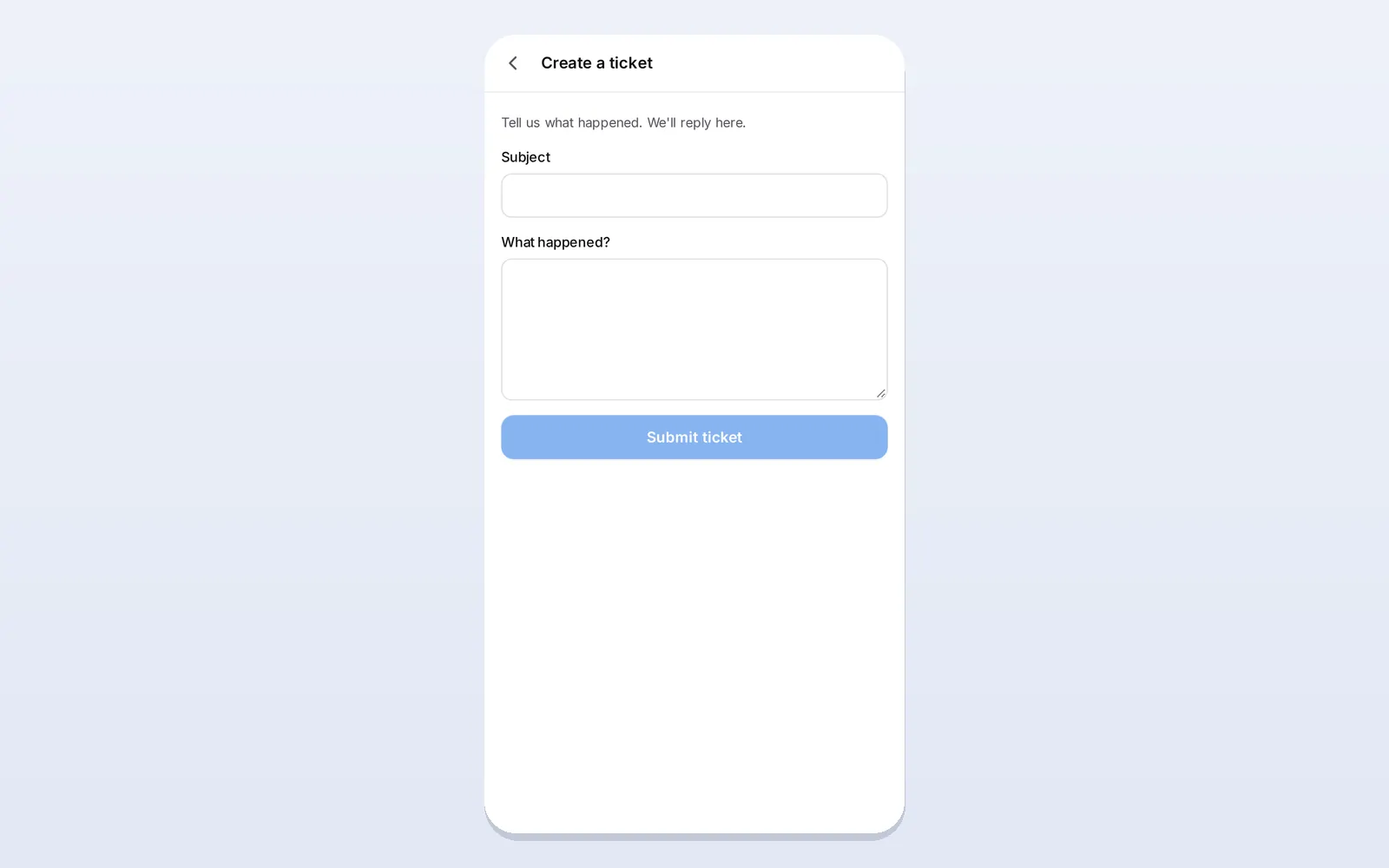
Switch on the Tickets card or space and visitors can open a ticket from the Messenger:
- They click Create a ticket, write a Subject and What happened?, and click Submit ticket.
- The ticket arrives in your inbox like any ticket, with a number — see Tickets and email.
- Visitors follow it under Tickets with its status: Submitted, In progress, Waiting for you or Resolved. They can open it and write more, like a conversation.
Tickets are off until you switch them on. Spam protection and blocked words apply as for any new conversation.
Announcements
Posts you publish in Outbound appear on the Announcements card and, if the space is on, in their own tab. The tab only shows when there is at least one post — see Banners and messages.
Quick links
Under Quick links, add up to four links — order tracking, shipping information, your status page … Each link has a text and an address in each language. Give it an icon and a short description and it gets its own card, like Order status — Where your parcel is right now; links without them are listed together in one card.
Still stuck? Contact