
Invite your team
Add teammates, choose their roles and manage seats and invitations.
Everyone who answers customers gets their own account. Conversations can then be assigned, notes and mentions reach the right person, and reports show each teammate's work.
Invite a teammate
- Go to Settings → Teammates. You see everyone in the workspace, their role, when they were last active and how many seats are used.
- Click Invite.
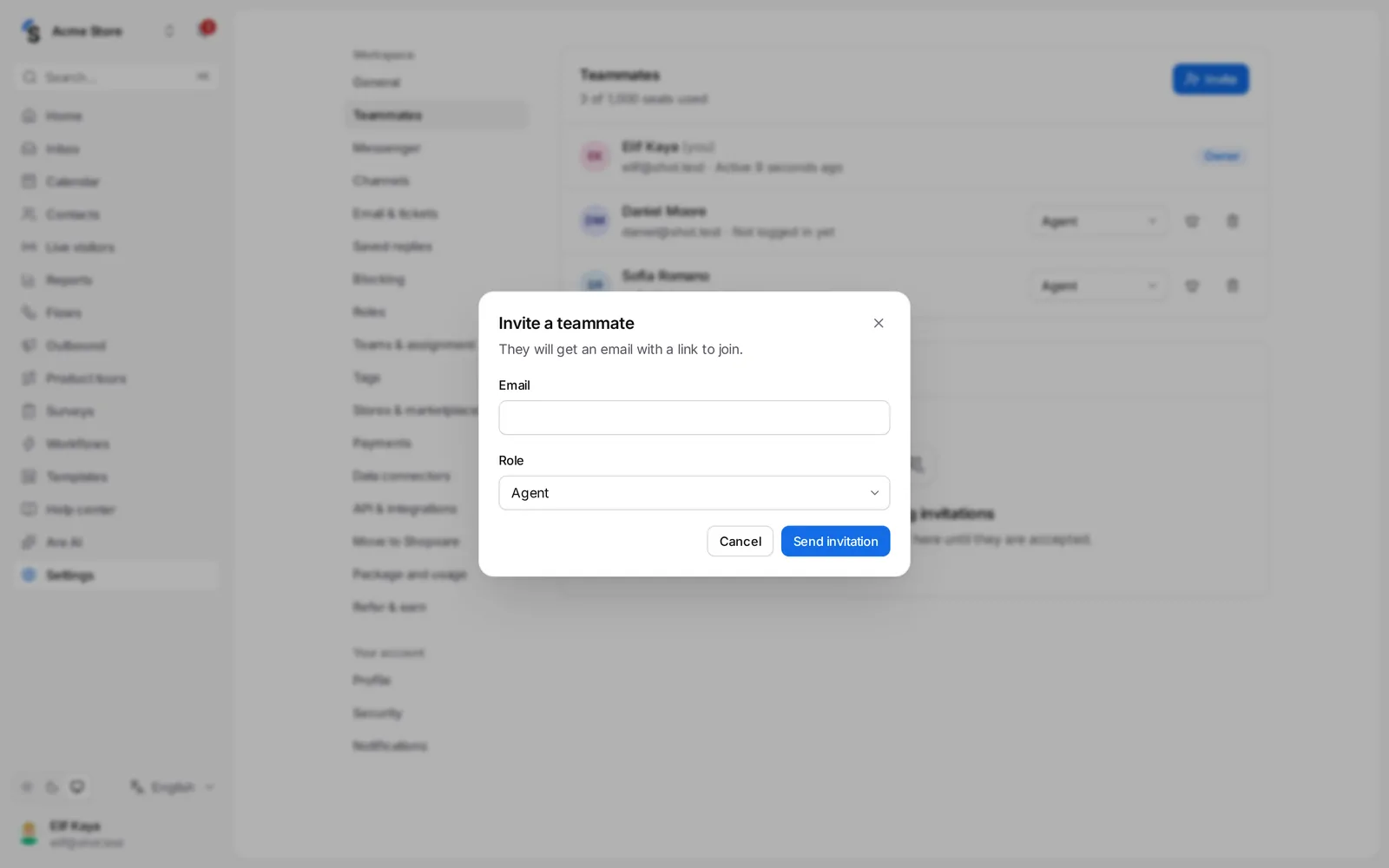
- Enter their email address, choose a role and click Send invitation.
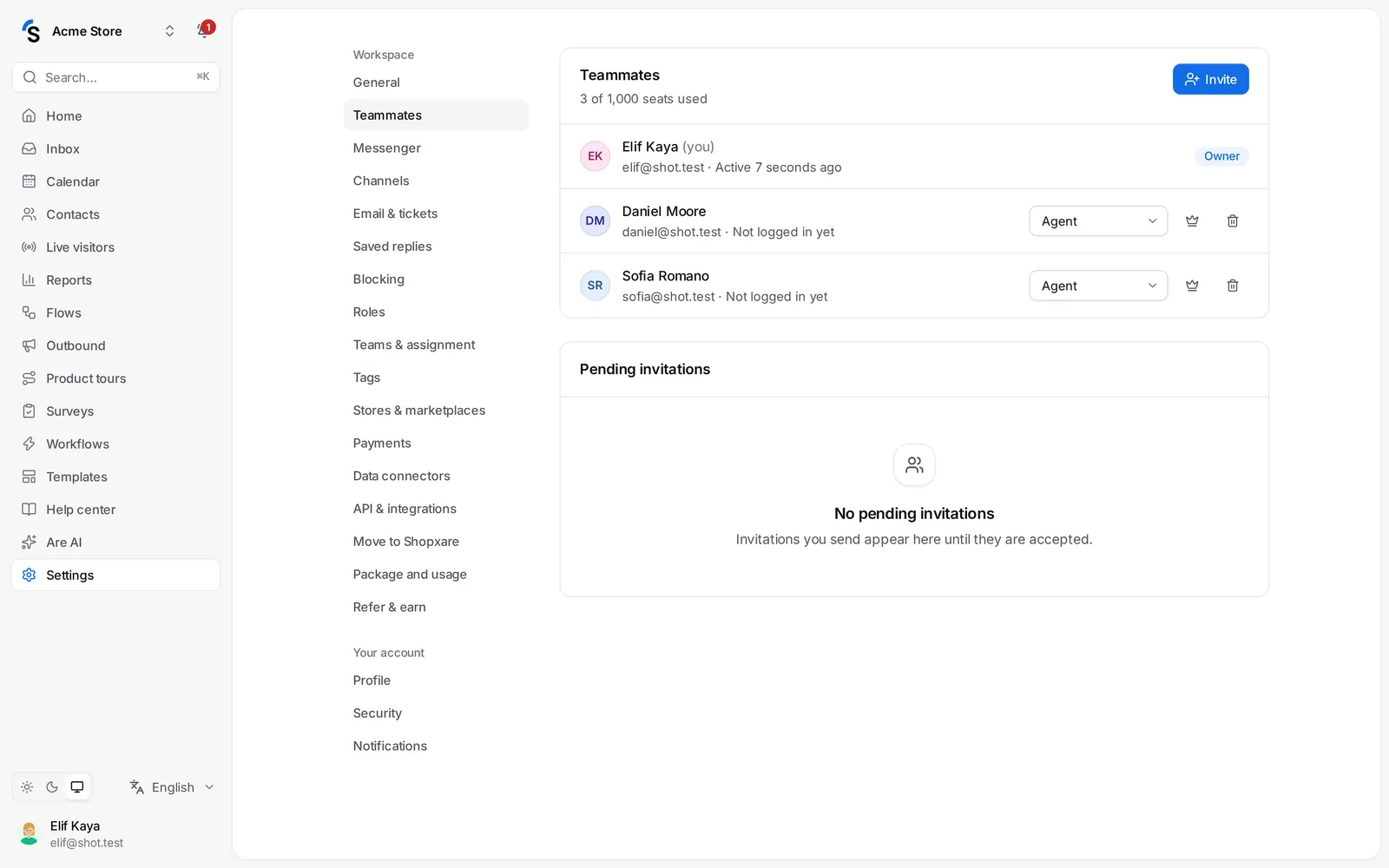
They receive an email with a link to join. The link only works for that email address and expires after 7 days. Until it is accepted, the invitation is listed under Pending invitations, where you can Withdraw it.
Seats
Every teammate uses one seat. The number of seats depends on your package; the page shows how many you use. When all seats are in use, upgrade your package or remove a teammate before inviting someone new — see Packages and usage.
Roles
- Owner — everything, including the package and deleting the workspace. A workspace has one owner, who cannot be removed.
- Admin — everything except owner-only actions.
- Agent — works in the inbox and with contacts.
- Viewer — can look, but not change.
You can also create your own roles and choose exactly what each one may do — see Roles and permissions.
Change or remove a teammate
On Settings → Teammates, open the role menu next to a name to change it, or click Remove. A removed teammate loses access right away; their past replies stay in the conversations, and their seat is free again.
Teams
Group teammates into teams (for example Sales and Support) to route conversations to the right people — see Teams and assignment.
Still stuck? Contact