
Are AI
An AI agent that answers customers from your own knowledge, around the clock — and hands over to your team when it should.
Are AI answers customers in the Messenger using only what you have taught it. When it can't help, it hands the conversation to your team — with everything said so far.
Switch it on in four steps
- Add knowledge. Go to Are AI → Knowledge and add your help center, website, files or short answers — see Teach Are AI.
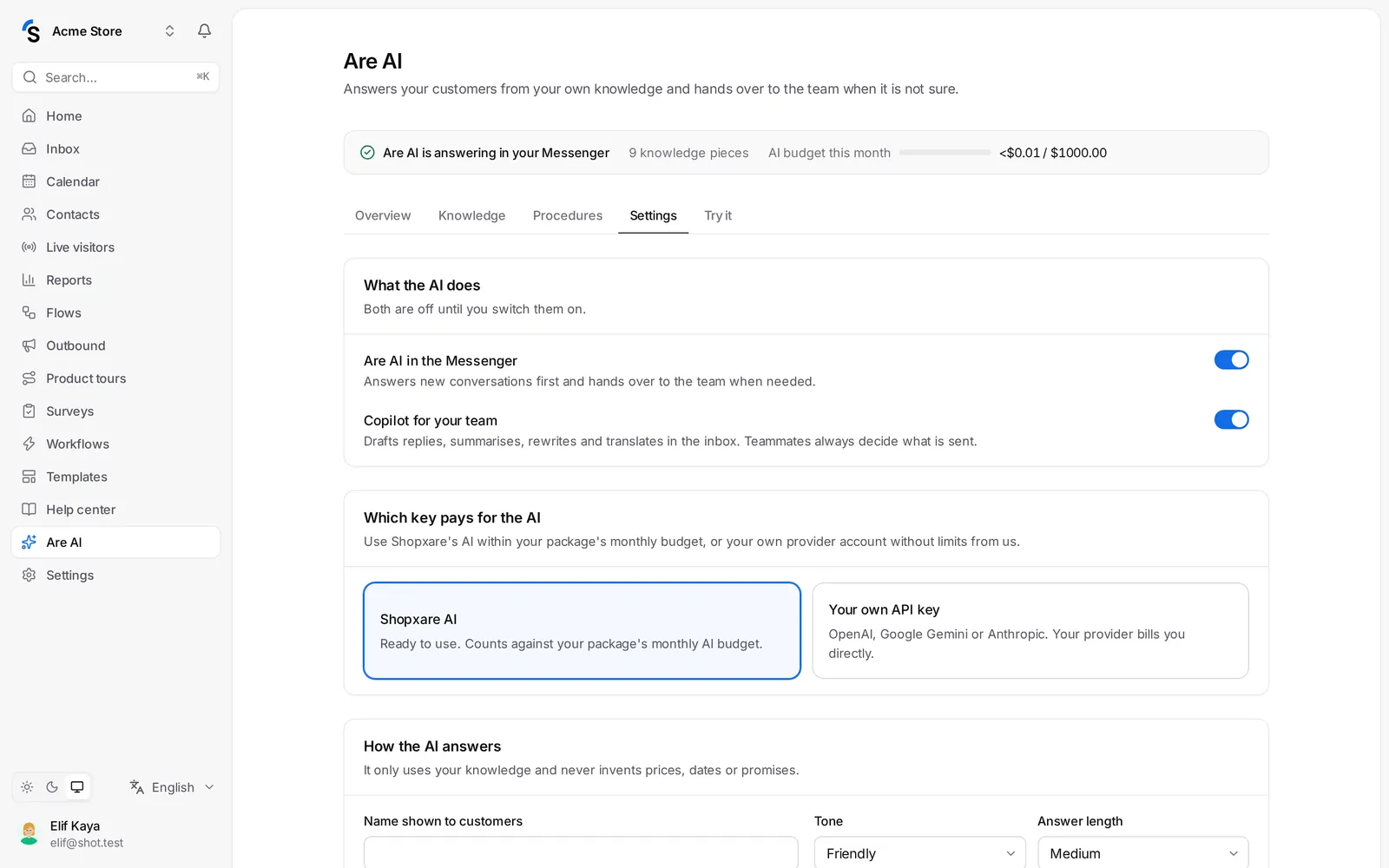
- Choose how it answers. In Are AI → Settings, under How the AI answers, set the Name shown to customers, the Tone (Friendly, Neutral or Formal) and the Answer length.
- Try it. Open Are AI → Try it and ask what your customers ask. You see the answer, its sources, the Confidence and whether it Would answer or Would hand over. Nothing is sent to anyone.
- Go live. Under What the AI does, switch on Are AI in the Messenger. The status at the top shows Are AI is answering in your Messenger.
How it works
- Are AI takes new conversations first. While it handles them they appear in the Are AI view of the inbox, not in Open.
- It answers only from your knowledge and never invents prices, dates or promises. Sources are kept with every answer; customers see a link only when they need to open a page, like a long guide or a policy.
- After a real answer the customer can click That helped or Talk to a person. Greetings and follow-up questions don't show these buttons and never count as a resolution.
- A conversation counts as solved when the customer confirms, or after 30 minutes of silence.
- Your team can step in at any time with Take over in the conversation.
When it hands over
Are AI passes the conversation to your team — and tells the customer — when:
- the customer asks for a person,
- the customer is upset, or the topic is sensitive,
- it is Not sure enough or the answer is Not in the knowledge,
- the customer sends a file,
- the topic is on your Always hand over these topics list,
- the AI budget is used up.
The reason is shown in the conversation, so you know why it came to you.
Settings
Under Are AI → Settings:
- Rules for the AI — short rules in your own words, for example Never promise refunds. Always mention free returns within 30 days.
- Always hand over these topics — for example Complaints, invoices, legal questions.
- Who the AI answers — Everyone, Only visitors (leads) or Only logged-in users.
- When — Always or Only outside office hours.
- Use shared saved replies — your team's shared saved replies become knowledge too.
- Hide personal data from the AI provider — emails, phone and card numbers are replaced before text is sent.
- Learn from successful conversations — see Teach Are AI.
- Copilot for your team — AI help in the inbox, see Copilot.
Overview
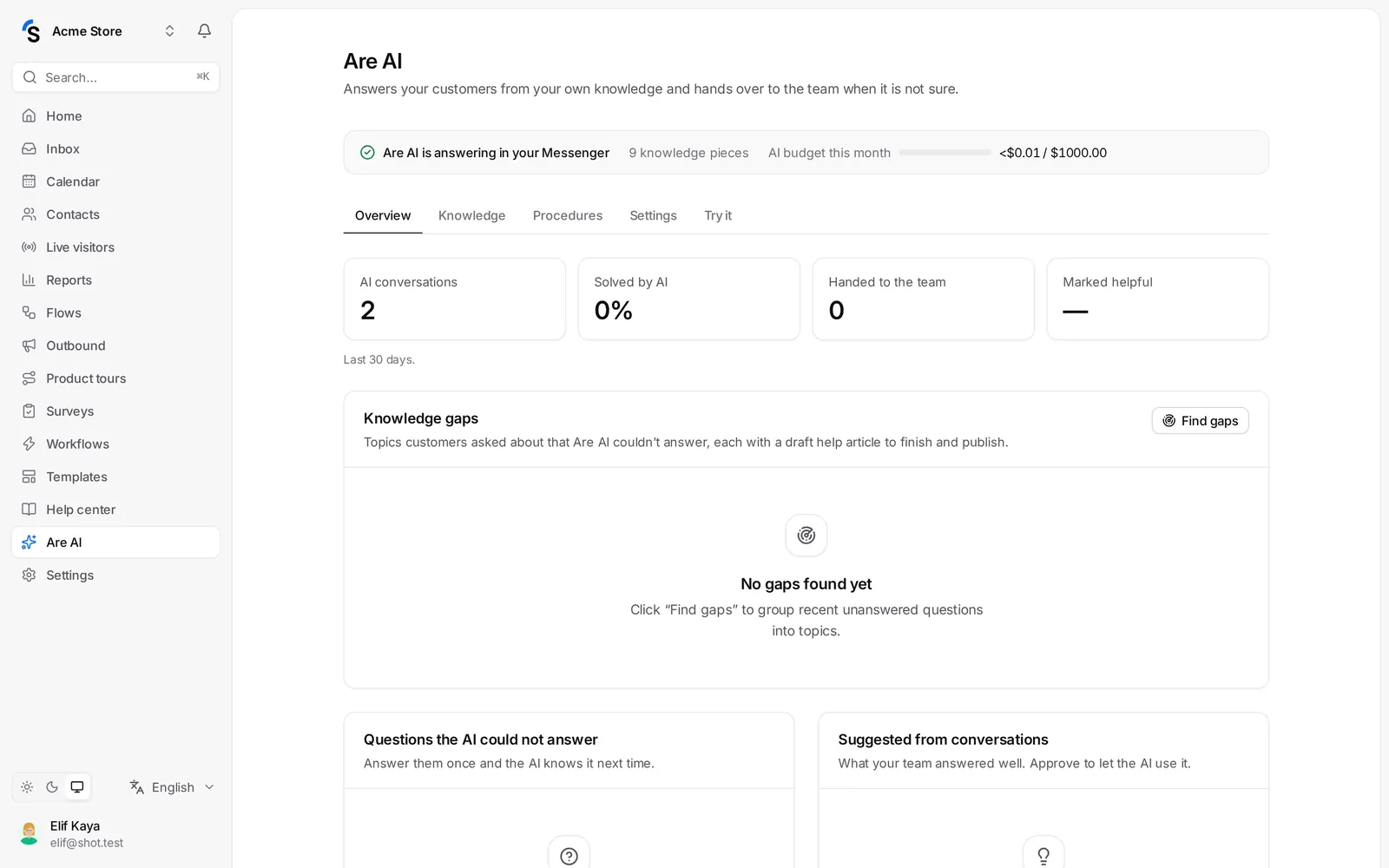
Are AI → Overview shows the last 30 days: AI conversations, Solved by AI, Handed to the team and Marked helpful. It also lists Questions the AI could not answer — answer one once and Are AI knows it next time — and Knowledge gaps: click Find gaps to group unanswered questions into topics and create a draft help article for each.
Budget and your own key
Your package includes a monthly AI budget; the status shows how much is used. Under Which key pays for the AI, choose Shopxare AI or Your own API key from OpenAI, Google Gemini or Anthropic — your provider then bills you directly, and the spend is shown but not limited by us. At 80 % of the budget the owner gets an email; when it is used up, new conversations go straight to your team.
With data connectors Are AI can also look up orders in your own systems and — after the customer confirms — change them.
Still stuck? Contact