
Calendar and meetings
Let customers book demos, fittings or calls — in the chat or with a booking link — with reminders and your team's calendar.
With the calendar, customers book a meeting with your team themselves: from the chat, from a link in your email signature or on your website. Shopxare sends the confirmation and reminders.
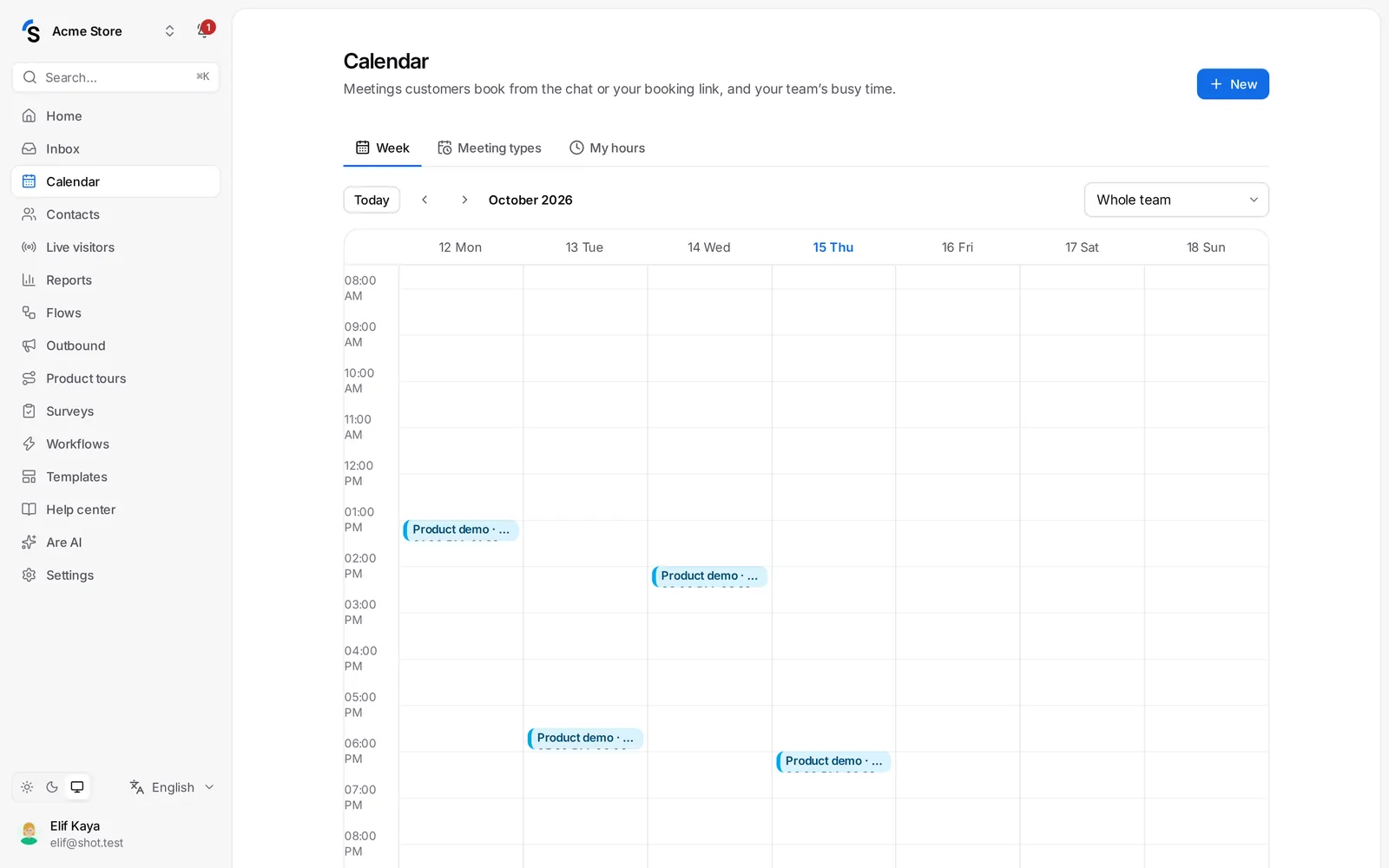
Go to Calendar. It has three tabs: Week, Meeting types and My hours.
1. Set your hours
Open My hours:
- Under Weekly hours, set when customers can book you. Click Add hours for a second range on the same day.
- Under Days off and special hours, add holidays, vacation or a day with different hours.
2. Create a meeting type
Open Meeting types and click New meeting type:
- Name — for example Product demo or Fitting appointment — and a Description for customers.
- Length and Start times (how often a slot can start).
- Where — Video call (add your Google Meet, Zoom or Teams link), Phone call, In person (your address) or Other.
- Who takes these meetings — one or more teammates. With several, choose First available or Round robin (the free teammate with the fewest upcoming meetings).
- Break before (min), Break after (min), Notice (no bookings sooner than this), Days ahead and Max per day.
- Questions before booking — name and email are always asked; add your own.
- Reminders to the customer — for example 1 day and 1 hour before, by email and/or as a chat message.
- Message after booking — what to prepare, where to park …
- Keep Customers can book this on and save.
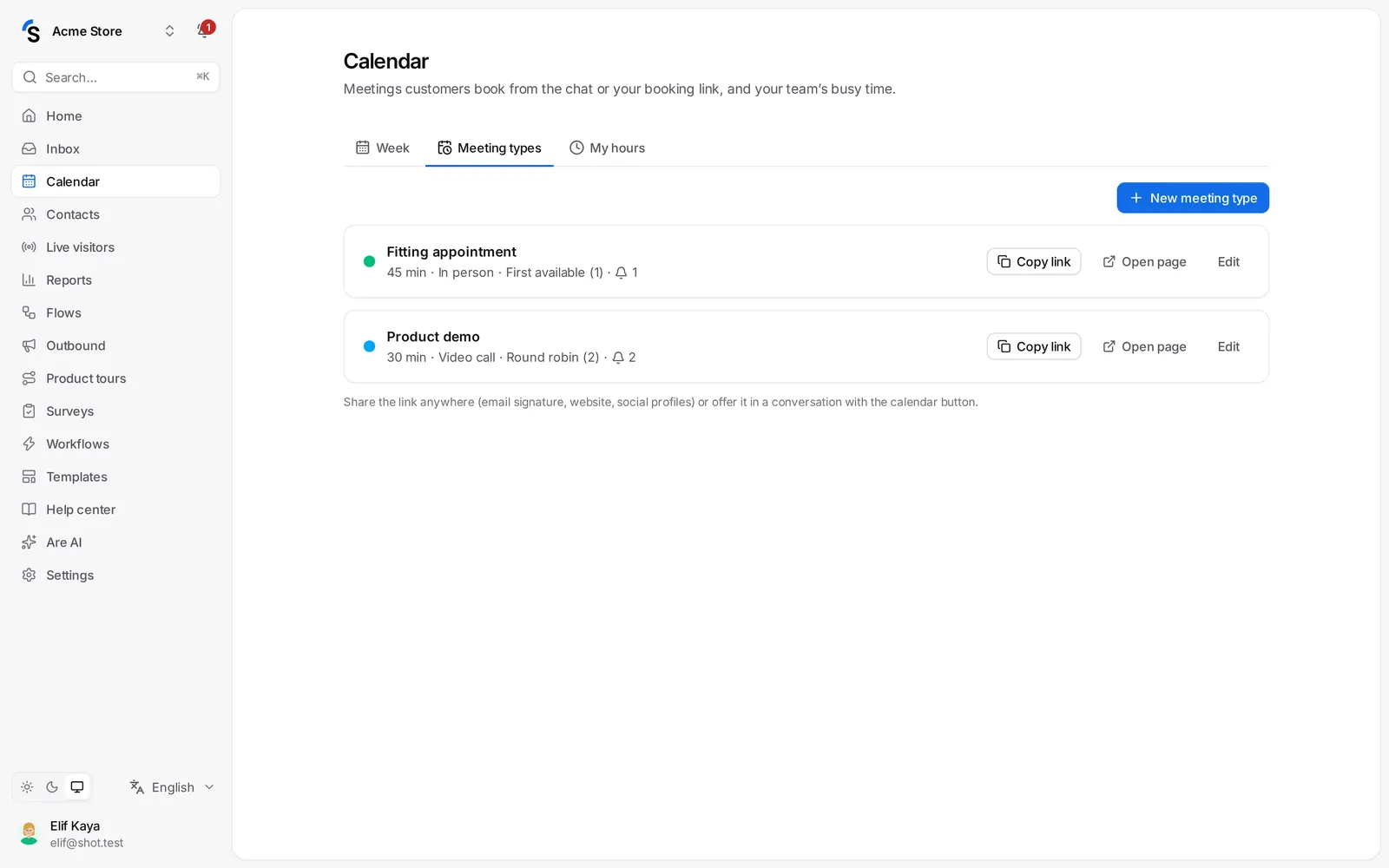
Click Copy link to share the booking page anywhere, or Open page to see it.
3. Offer a meeting in a conversation
In a conversation, click the calendar button (Offer a meeting) in the reply box (it appears once you have a meeting type), choose the meeting type and click Send. In the Messenger the customer picks a time right in the chat; in email and other channels they get the booking link.
What happens after booking
- The customer gets a confirmation email with the meeting attached, and a link to Reschedule or cancel.
- The host gets an email (turn this off with Notify the host about new bookings) and the meeting appears in the Week tab.
- Reminders go out at the times you chose.
Manage meetings
In Week, click a meeting to Move it (the customer is told by email), Cancel meeting with a reason, or mark it Held or Didn't show up. Double-click a time to add a meeting or a Busy time yourself.
Your calendar app
Under Your calendar app, copy the address and subscribe to it in Google Calendar, Outlook or Apple Calendar to see your Shopxare meetings there.
Still stuck? Contact