
Move to Shopxare
Bring your contacts, past conversations and help articles from Intercom, Zendesk, Freshdesk, Crisp, tawk.to and others.
Moving from another tool? Shopxare copies your contacts, past conversations and help articles in the background while you set everything else up.
One-click import with an API key
Go to Settings → Move to Shopxare.
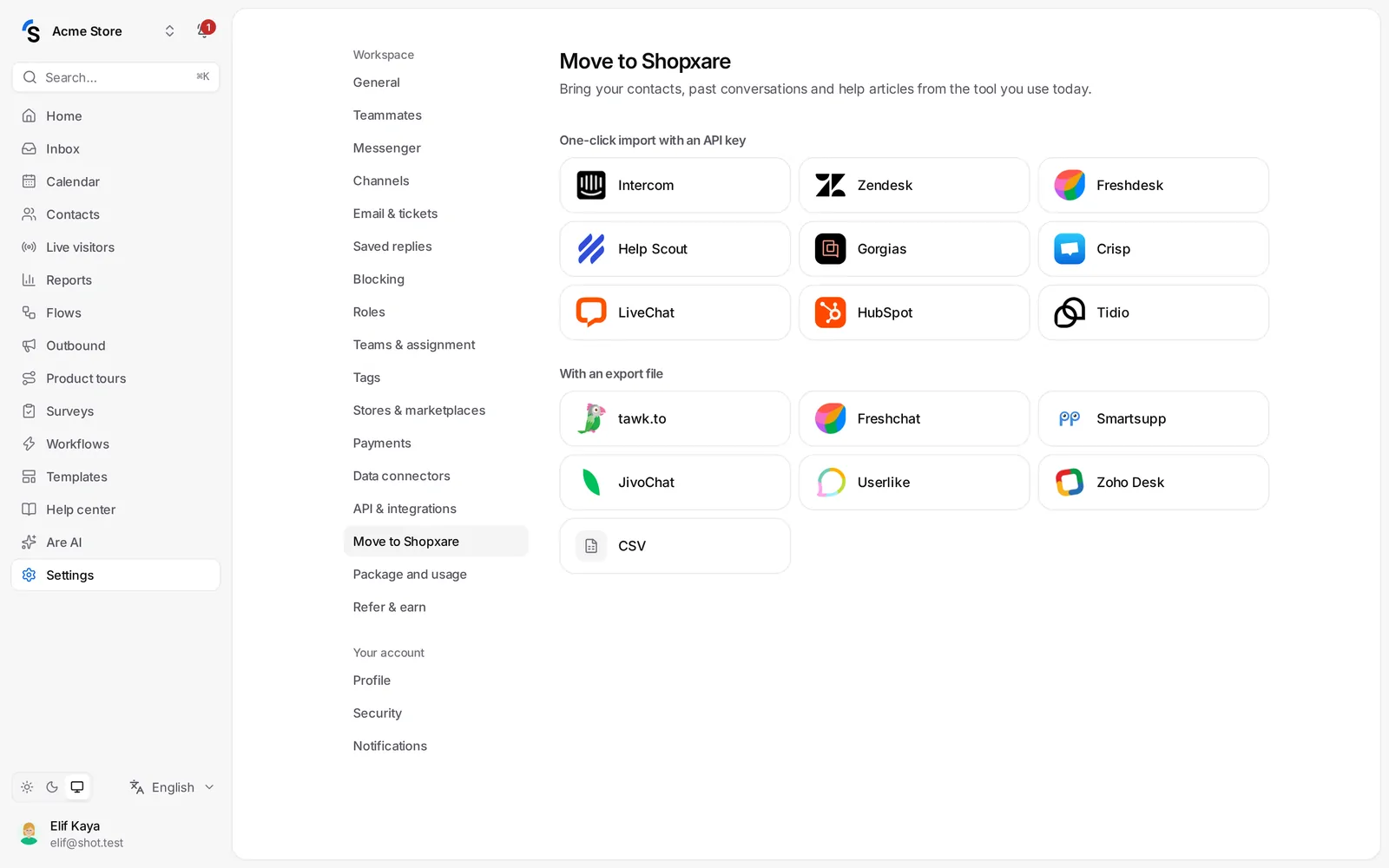
- Under One-click import with an API key, pick the tool you use today — for example Intercom, Zendesk, Freshdesk, Help Scout, Gorgias, Crisp, LiveChat, HubSpot or Tidio.
- Paste its API key. Where do I find the key in …? explains where it is in that tool. Some tools also ask for your account address or region.
- Under What to import, tick Contacts, Conversations and Help articles.
- Click Start import. We check the key first, then copy everything in the background.
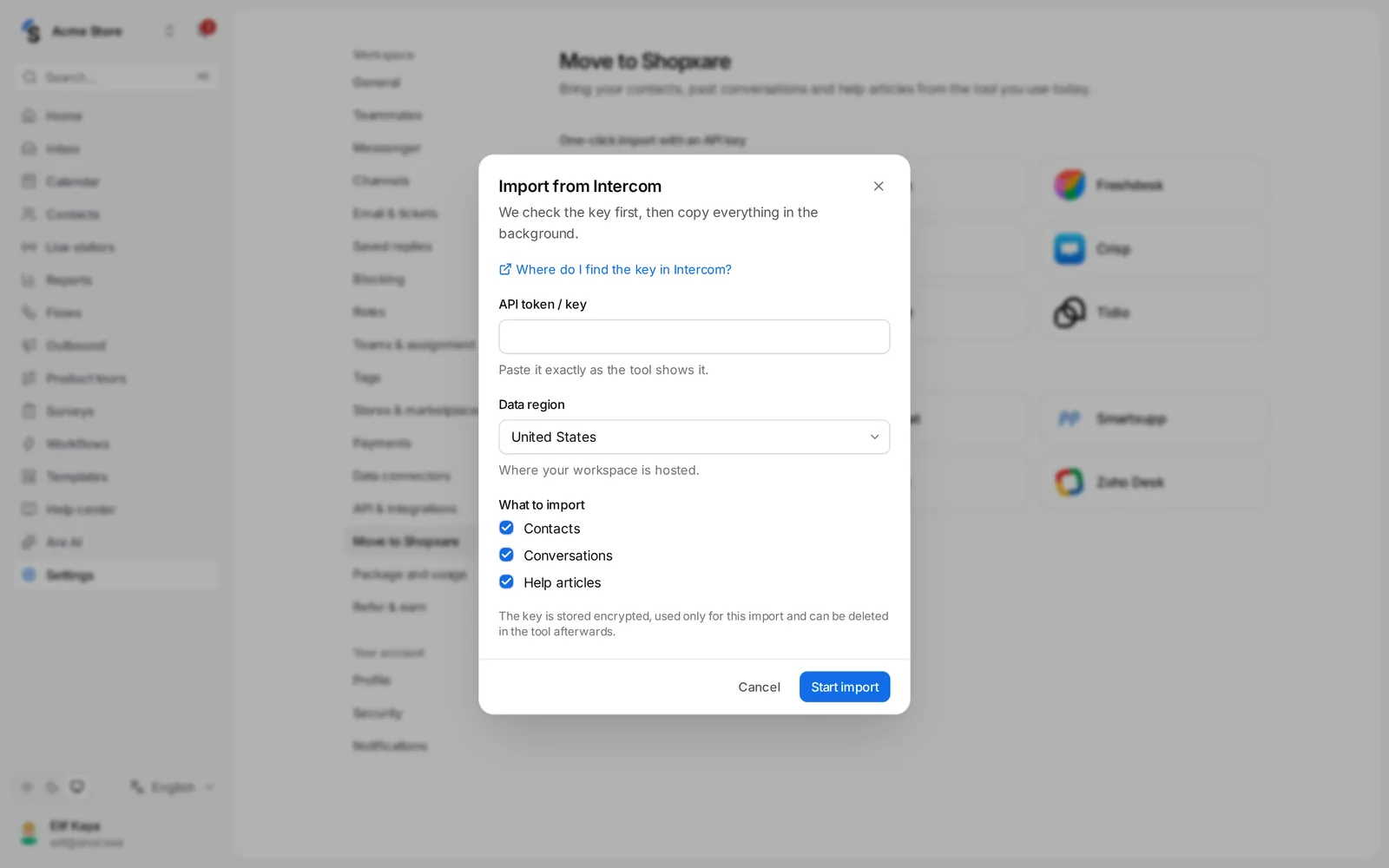
You can leave the page: the import continues and its progress is listed under Imports. Old conversations arrive closed, so nobody is notified and no reply targets start. Help articles arrive as drafts in a collection named after the tool.
The key is stored encrypted, used only for this import, and you can delete it in the other tool afterwards.
With an export file
Some tools (tawk.to, Freshchat, Smartsupp, JivoChat, Userlike, Zoho Desk and others) let you export contacts as a CSV file:
- Under With an export file, pick the tool and follow its short instructions to download the file.
- Open Contacts → Import and upload the file.
- Match the columns (name, email, phone …) and start. Existing contacts are updated, not duplicated.
Help articles from any help center
To copy articles from a public help center or docs site, use Help center → Import → From a website — see Help center articles.
New workspaces
Right after you sign up, Shopxare asks whether you are moving from another tool. Pick it there, or choose No, start fresh and come back to Settings → Move to Shopxare any time.
Still stuck? Contact