
Teams and assignment
Teams, automatic assignment, rules, shifts, office hours and reply targets (SLA).
Go to Settings → Teams & assignment. Everything here is optional — without teams and rules, every teammate sees every conversation.
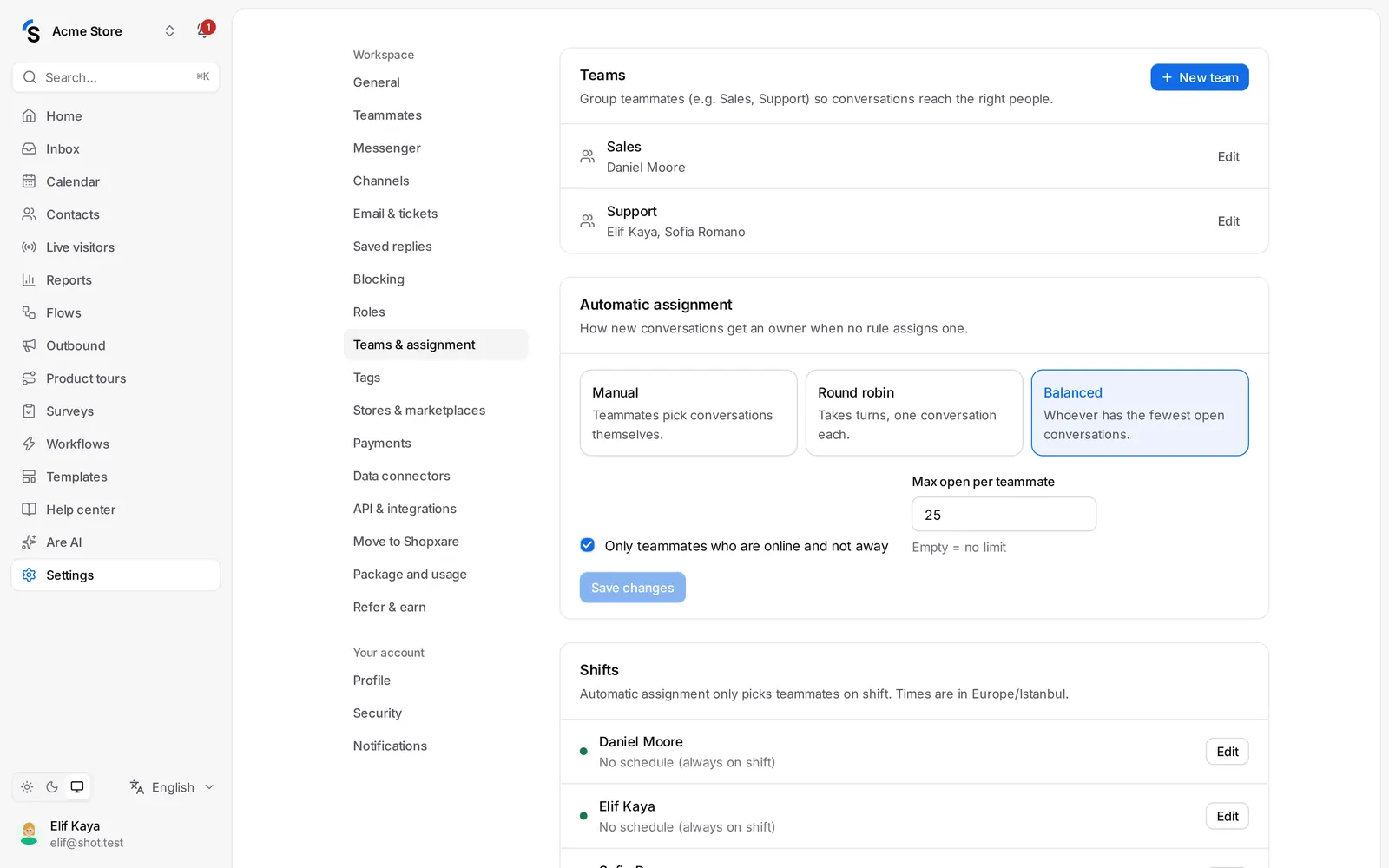
Teams
- Under Teams, click New team.
- Give it a Team name (for example Sales or Support) and choose its Members.
Each team gets its own view in the inbox. How many teams you can have depends on your package.
Automatic assignment
Choose how new conversations get an owner when no rule assigns one:
- Manual — teammates pick conversations themselves.
- Round robin — takes turns, one conversation each.
- Balanced — whoever has the fewest open conversations.
Turn on Only teammates who are online and not away, and set Max open per teammate to stop anyone from getting overloaded (empty = no limit).
Assignment rules
Rules are checked from top to bottom for every new conversation; the first match wins.
- Click New rule and give it a Rule name.
- Under When all of these are true, add conditions — for example Page URL contains /wholesale, Language is German, First message contains invoice, a channel or a contact attribute.
- Under Then, choose a team, a teammate and/or Mark as priority.
- Use Move up and Move down to change the order.
Shifts
Under Shifts, open a teammate and tick Use a weekly schedule. Automatic assignment only picks teammates on shift; outside their hours no conversation is assigned to them automatically.
Office hours and SLA
- Turn on Use office hours and set the hours for each day. Add Holidays when you are closed all day.
- Outside office hours, the Messenger tells customers when you are back, and reply targets pause.
- Under Response-time targets (SLA), set Reply within (normal) and Reply within (priority) in working minutes.
When a customer is waiting, the inbox counts down (Reply in …) and marks late conversations Overdue. Missed targets are shown in reports and can notify you — see Notifications.
Still stuck? Contact