
Your help center's look and address
Brand, colors, header, links and your own domain (for example help.yourbrand.com) for the help center.
Import your brand
- Go to Help center → Settings.
- Under Import your brand, enter your website and click Import.
- We read its colors, logo, favicon and font. Pick a color and click Apply.
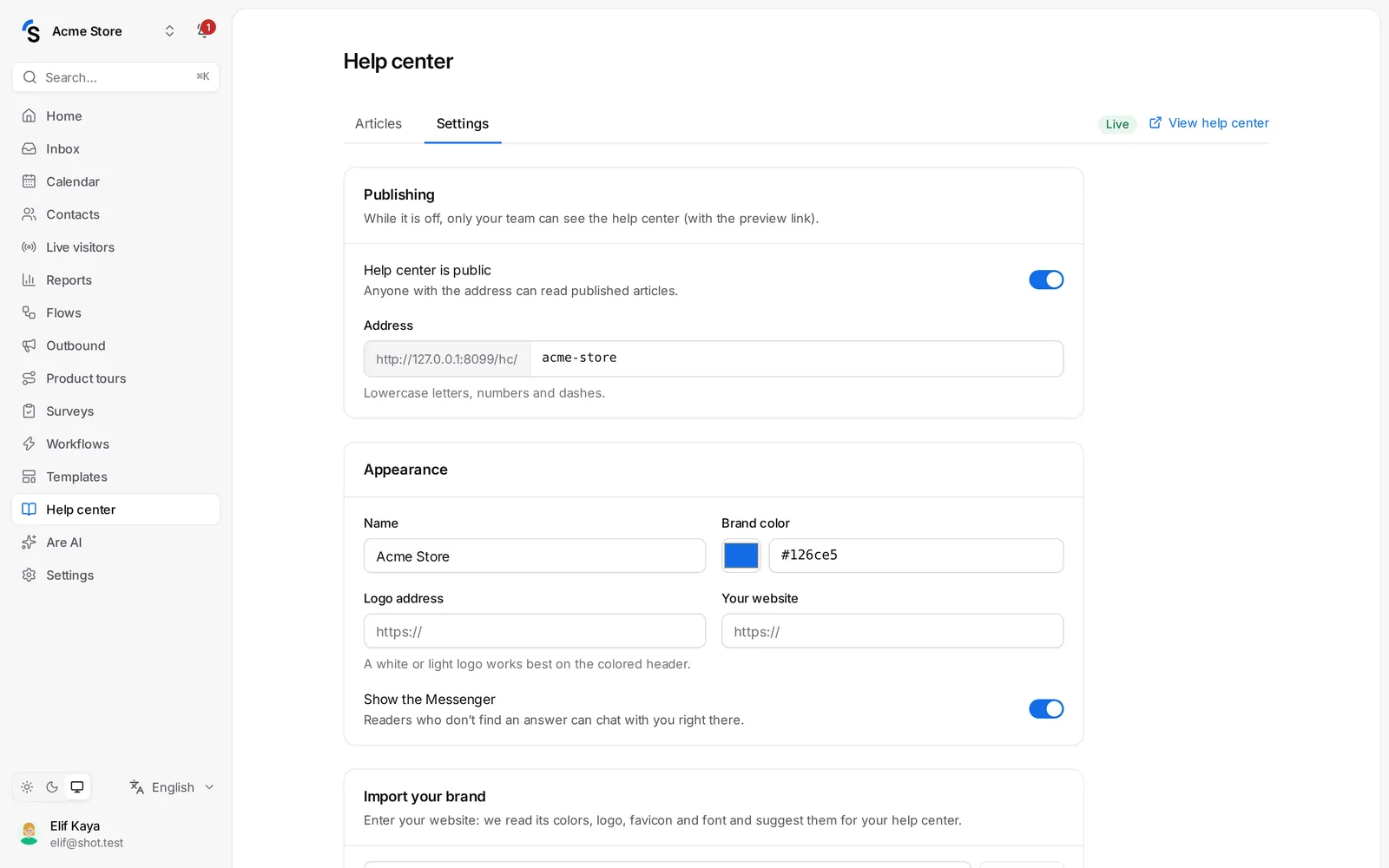
Appearance
- Theme — light, dark or automatic.
- Brand color, font and corners (sharp, soft or round).
- Header background — a solid color, a gradient of two colors or an image, with light or dark text.
- Collections on the home page — as cards or as a list.
- Header links — up to four links to your shop or your order tracking page at the top.
- Footer text, favicon and custom CSS for the last details.
Click Preview to see the result before you save.
Address
Your help center has a Shopxare address you can set under Address. You can also show it on your own domain.
Custom domain
Serve your help center on your own address, like help.yourbrand.com:
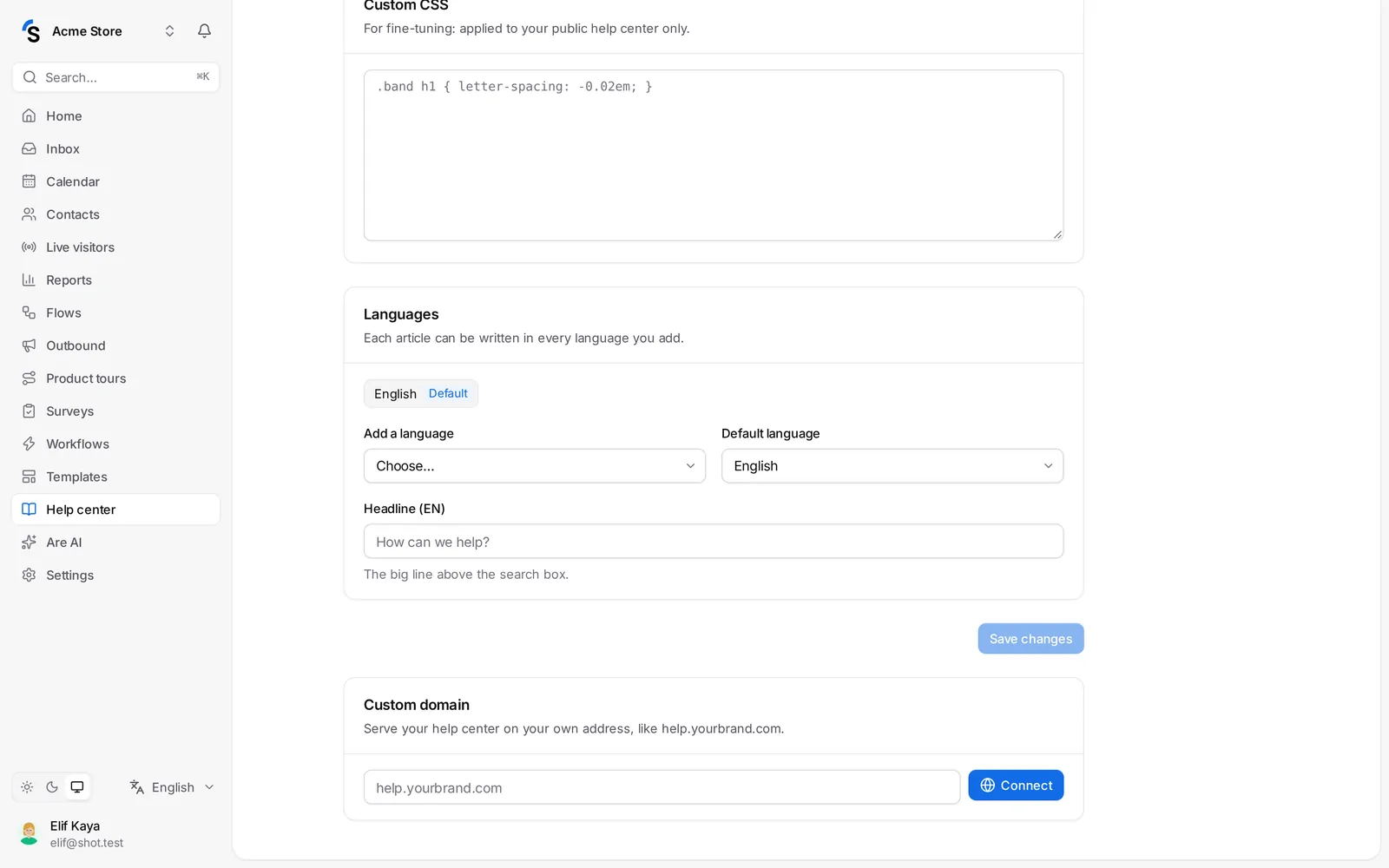
- Under Custom domain, enter the subdomain and click Connect.
- Add the record shown at your domain provider (DNS). The CNAME record is the usual way; the TXT record is an alternative if you cannot add the CNAME yet.
- DNS changes can take a few minutes up to a few hours. We check automatically every 15 minutes; click Check again to check now.
- When the record is found, the status turns to DNS verified — the secure certificate is being set up, and then to Live.
Use a subdomain (help.yourbrand.com), not your main domain. Custom domains depend on your package.
Still stuck? Contact