
Payment links
Connect your own payment account and send a payment link in any conversation — the conversation shows when it is paid.
Send a secure payment link right in the chat — for a shipping difference, a deposit or a custom order. The customer pays on your provider's page, and the conversation shows when the payment is received.
Connect a payment account
- Go to Settings → Payments and click Connect a payment account.
- Pick your provider: Stripe, PayPal, Mollie, Adyen, Klarna, Square, SumUp, Revolut, Checkout.com, Braintree, Worldline, Unzer, Nexi, Redsys, MONEI, Przelewy24, PayU, Tpay, Autopay, iyzico, PayTR, Craftgate, Mercado Pago, PagBank and more.
- Paste the keys from your provider's dashboard — the window explains where to find them. Tick Test mode to try it with sandbox keys first.
- Click Connect.
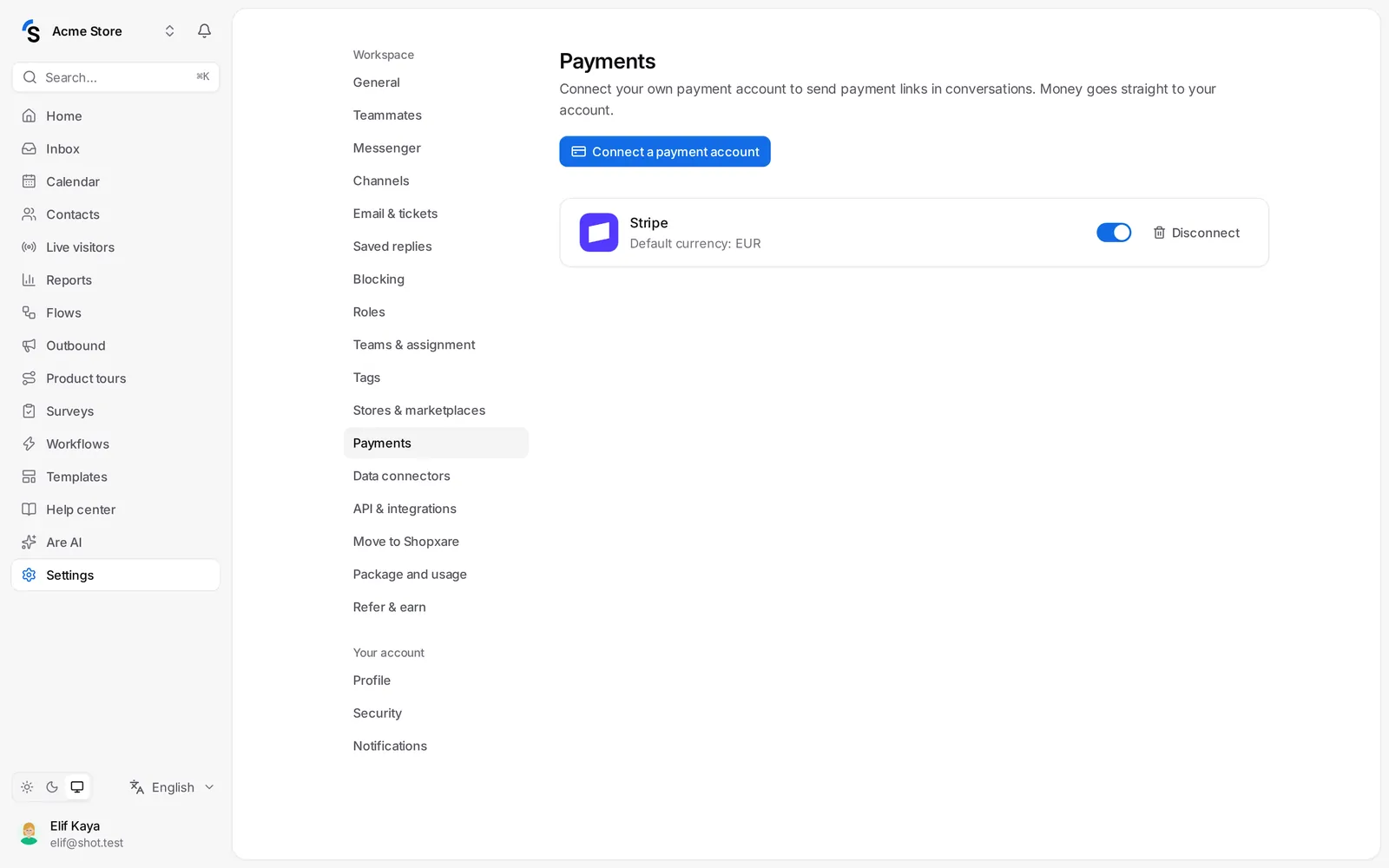
Keys are stored encrypted. The money goes straight to your own account; Shopxare never holds it.
Send a payment link
- Open a conversation and click the payment button in the reply box: Send a payment link.
- Enter the Amount, Currency and What is it for? — for example Order 1042 – shipping difference. Add the Customer email if your provider needs it.
- Click Create and send.
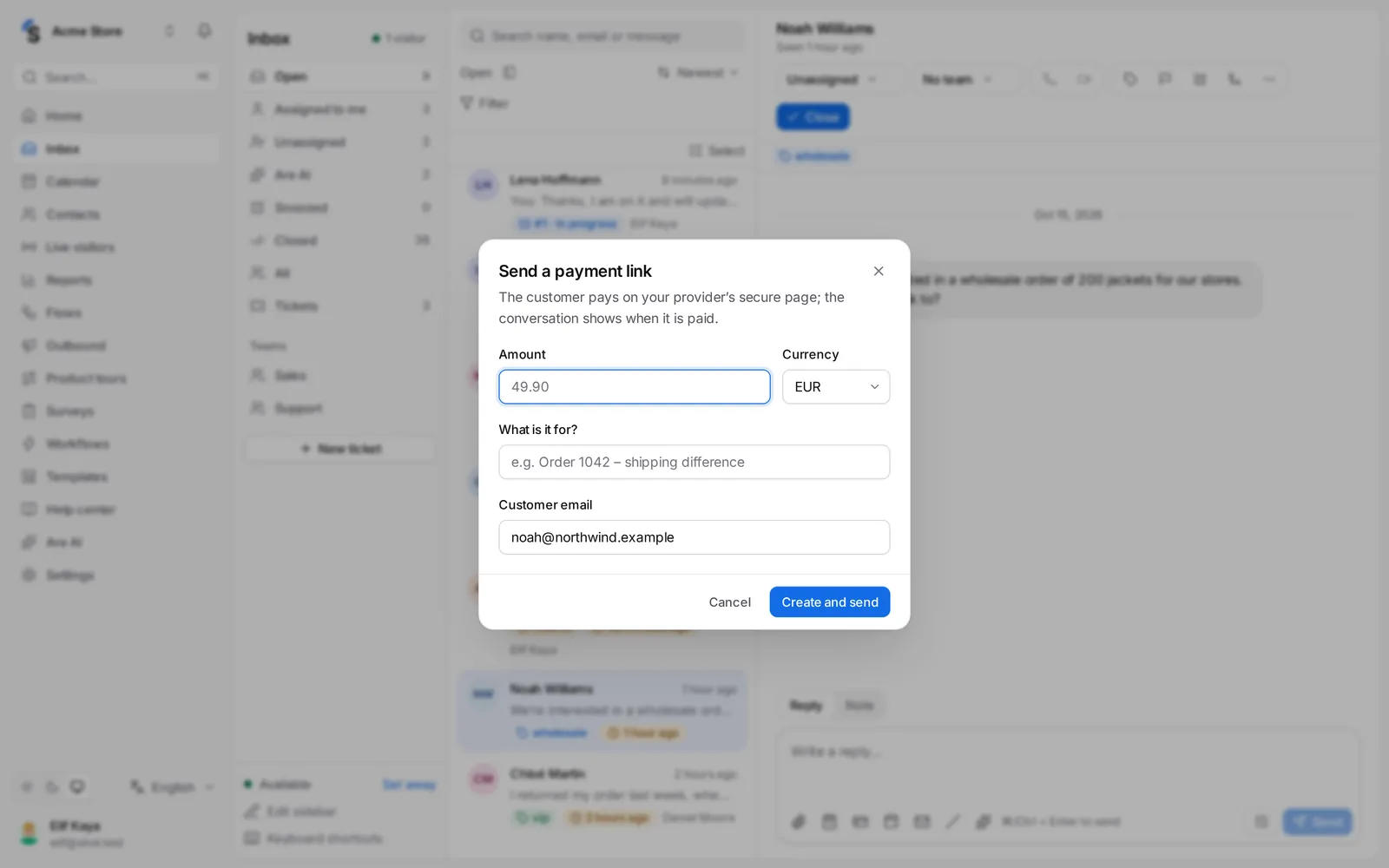
The customer gets a card with Go to payment. When they pay, the conversation shows Payment received and the link turns Paid. Recent payment links on the settings page lists every link with its status: Waiting, Paid, Failed or Expired.
Payment links depend on your package.
Still stuck? Contact