 Shopxare Team
Short answer: WooCommerce doesn't come with a chatbot, so you add one with a plugin. For a chatbot that answers "where is my order?", it needs two connections: a chat widget on your WordPress site and a read-only link to your orders through a WooCommerce REST API key. Then it needs your shipping and returns pages as its source, a short list of topics it must hand to a person, and a test with 20 real customer questions before it goes live. Plan an afternoon for the setup and 20 minutes a week for the first month.
Below: the three kinds of WooCommerce AI chatbot and which fits, a seven-step setup, how to keep order data safe with guest checkout, a test sheet and when an AI chatbot is the wrong tool.
There is no built-in chatbot, so you choose a kind
WooCommerce runs on 7.8% of all websites (W3Techs, November 2026), and none of them get chat from WooCommerce core. Chat comes from extensions and plugins, and they fall into three groups:
| AI plugin inside WordPress | Hosted chat tool with a WordPress plugin | General chatbot builder | |
|---|---|---|---|
| Where it runs | Your server, usually with your own OpenAI or similar key | The vendor's servers; the plugin loads the widget | The vendor's servers, added as a script |
| Order lookups | Reads WooCommerce directly, if the plugin supports it | Through a WooCommerce REST API key | Usually needs custom setup |
| Human handover | Often email only, or none | A shared inbox where your team takes over | Varies, often a form |
| Other channels | Website only | Often email, social or marketplace messages too | Varies |
| Upkeep | Plugin updates, API costs and your hosting | Vendor handles hosting | Flows you build and maintain |
Pick an AI plugin inside WordPress if you want everything on your own server, you are comfortable paying an AI provider directly and nobody else answers customers but you. Look at the active install count first: on the WordPress.org "woocommerce chatbot" tag, the 20 plugins on the first page ranged from 900+ active installs down to fewer than 10 (November 2026). A plugin with a handful of installs is a risk on a live checkout.
Pick a hosted chat tool if two or more people answer customers, you want a person to take over in the same conversation, or questions also arrive by email. The steps below use Shopxare as the example. Steps 1, 6 and 7 apply to any tool.
Set up a WooCommerce AI chatbot in 7 steps
1. Collect 20 real questions
Open your support email and last month's contact form messages and copy 20 questions word for word, typos included. Sort them into orders, policies, products and "needs a person". This list becomes your test sheet in step 7, and it shows you which pages the AI will need.
2. Install the chat on WordPress
In Shopxare, go to Settings → Messenger → Install, pick WordPress and download the plugin. In WordPress, open Plugins → Add New → Upload Plugin, upload the file and activate Shopxare Live Chat. Then open Settings → Shopxare Live Chat and click Connect with Shopxare. The plugin signs logged-in customers with identity verification automatically, so nobody can pose as one of them. Exact steps are in the WordPress and WooCommerce guide. If you use a caching plugin, clear the page cache before you check the site. Our earlier post compares three ways to add live chat to WordPress.
3. Connect your orders with a read-only key
The plugin shows your team orders and carts next to each chat. For the AI and the customer to see order status, connect the store as well:
- In WordPress, go to WooCommerce → Settings → Advanced → REST API and click Add key (WooCommerce docs).
- Description: "Shopxare chat". User: an admin account. Permissions: Read.
- Click Generate API Key. WooCommerce shows the consumer secret only once, so copy both values now.
- In Shopxare, go to Settings → Stores & marketplaces → Connect a store, choose WooCommerce, paste the keys and click Connect.
Read permission is enough for status, items and tracking, and it means a leaked key can't change an order. Then switch on Order tracking and, if you want product suggestions, Shopping assistant. Details are in Stores and orders.
4. Give the AI your pages
Under Are AI → Knowledge, click Add website, enter your shop address and choose Sitemap (sitemap.xml). Use the sitemap your site already has, from WordPress itself or from your SEO plugin. The crawl reads shipping, returns and payment pages first and skips cart, account and search pages. Add Short answers for facts that aren't written on any page, such as "Do you ship to Ireland?" How sources are ranked is in Teach Are AI.
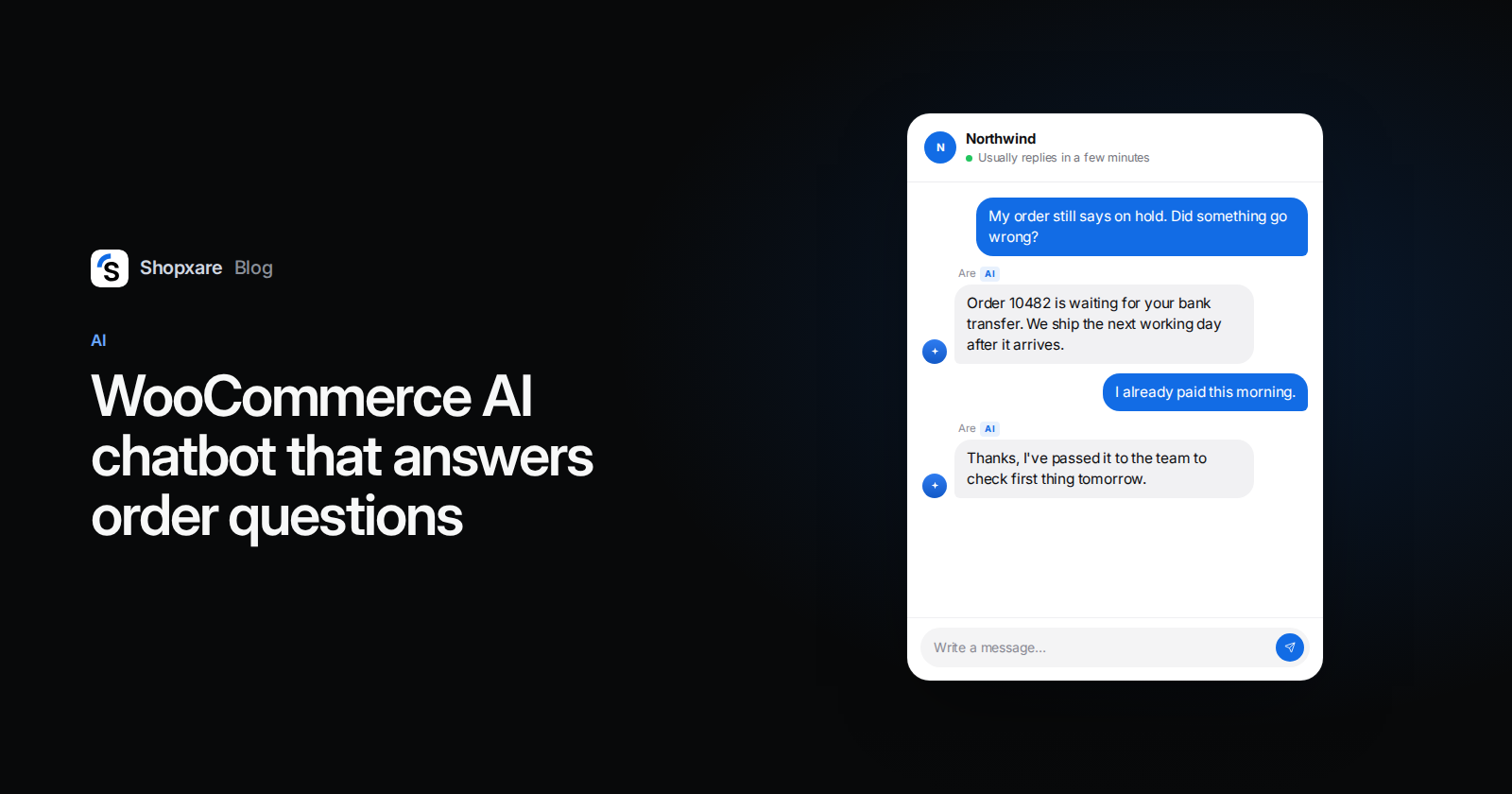
One WooCommerce-specific short answer is worth writing: what your order statuses mean to a customer. WooCommerce uses statuses such as Pending payment, Processing, On hold and Completed (WooCommerce docs). "On hold" sounds alarming to a customer waiting for a bank transfer. A short answer like "On hold means we are waiting for your bank transfer to arrive; we ship within one working day after it does" saves a follow-up message.
5. Decide when it stops
Under Are AI → Settings:
- Always hand over these topics: damaged or wrong items, address changes after dispatch, refunds outside the return window, trade and wholesale enquiries.
- Rules for the AI: "Never promise a delivery date. Give the carrier's estimate and the tracking link."
- When: start with Only outside office hours for two weeks. You read the AI's conversations each morning before you let it answer all day.
- Hide personal data from the AI provider: on. Emails, phone and card numbers are replaced before text goes to the AI provider.
6. Say that it is an AI
Set Name shown to customers to something like "Mia (AI assistant)". In the EU, Article 50(1) of the AI Act requires telling people they are talking to an AI system unless it is obvious, and it has applied since 2 August 2026. It also helps with trust: in a Gartner survey of 5,728 customers (published 2024), 64% said they would prefer companies didn't use AI in customer service, and the top worry was that reaching a person would get harder. A clear name and a visible way to reach a person answer both.
7. Test, then go live
Run your 20 questions and the sheet below in Are AI → Try it. It shows the answer, the sources, the confidence and whether it would hand over, without sending anything. When it passes, switch on Are AI in the Messenger. After the first week, open Are AI → Overview → Questions the AI could not answer and fill the gaps.
Order data and guest checkout
Many WooCommerce stores allow guest checkout, so a lot of customers have no account to log into. In Shopxare, guests click Track your order and enter the order number together with the email or phone they ordered with; a number alone isn't enough. Logged-in customers are already verified by the plugin. If you later let the AI change orders through a data connector, those connectors work only for identified users by default and ask the customer to confirm before anything changes. Our view: start read-only and add changes only when you see the same request every day.
Test sheet for WooCommerce stores
Replace the brackets with your details and write the expected result before you ask.
ORDERS                                               Expected
1. Where is my order [real number]? (guest)          Asks for email or phone, then status + tracking
2. My order says On hold, is something wrong?        Explains On hold in plain words
3. It says Completed but nothing arrived             Tracking link, then offer a person
4. Can I add an item to my order?                    Hand over
5. I paid twice                                      Hand over at once

POLICIES
6. How many days do I have to return?                Answer: [30 days], from returns page
7. Who pays return postage?                          Answer: [your rule]
8. Do you deliver to [country you don't serve]?      Answer: no, plus what's possible
9. Can I pay by bank transfer?                       Answer: [your payment methods]

PRODUCTS
10. Is [product] in stock in [size or variant]?      Answer: live stock
11. What's the difference between [A] and [B]?       Answer from both product pages

HANDOVER
12. The parcel arrived damaged                       Hand over at once
13. I want to speak to someone                       Hand over at once

Pass: 12 of 13 right, and zero wrong policy answers.
A wrong return window is a fail on its own. Fix the page the answer came from, not the answer, and run the sheet again.
Example: a tea shop at 21:15
An illustration, not a real customer. A UK shop sells loose-leaf tea on WooCommerce with guest checkout and bank transfer. One person answers from 9:00 to 17:00. On a Thursday evening:
Customer: Hi, I ordered on Monday and it still says on hold. Did my order go wrong?
AI (Mia, AI assistant): I can check. What's your order number and the email you used?
Customer: 10482, [email protected]
AI: Order 10482 is on hold because we're still waiting for your bank transfer of £34.50. Transfers can take up to two working days. Once it arrives we ship the next working day and you'll get the Royal Mail tracking link by email. If you've already paid, I can pass this to the team to check in the morning.
The answer works because "On hold" has a short answer in plain English and the AI can read the live order. Without the key from step 3, the best it could say is "please contact us".
When not to use an AI chatbot on WooCommerce
- You get a few chats a week. Saved replies and fast human answers do more.
- Your policies live in your head. The AI can only repeat what is written. Write the returns and shipping pages first.
- Most messages are custom quotes or complaints. Those need a person; a chatbot only adds a step.
- Nobody will read the AI's chats. Without 20 minutes a week in the first month, the same mistake repeats quietly.
If AI isn't right yet, the chatbot vs live chat comparison helps you decide what to start with.
FAQ
Does WooCommerce have a built-in chatbot?
No. WooCommerce core has no live chat or AI chatbot. You add one with a WordPress plugin or a chat tool's script.
Can an AI chatbot track WooCommerce orders?
Yes, if it is connected to your store, usually with a WooCommerce REST API key created under WooCommerce → Settings → Advanced → REST API. Read permission is enough for status and tracking.
Is there a free AI chatbot for WooCommerce?
Some WordPress plugins are free to install; check whether they need your own AI provider key, which you pay for separately. Shopxare is free and includes a monthly AI budget; after that you can buy AI credit or use your own OpenAI, Gemini or Anthropic key.
Is a WooCommerce chatbot safe for customer data?
It can be. Use a read-only API key, ask guests for the order email as well as the number, and turn on hiding personal data from the AI provider.
Do I have to tell customers they're talking to an AI?
In the EU, yes, since 2 August 2026 under Article 50 of the AI Act, unless it is obvious. Put "AI assistant" in the name or the greeting.
Shopxare is free, with no credit card. Create a workspace, connect your WooCommerce store with a read-only key and run the test sheet in Try it before a customer sees an AI answer.