 Shopxare Team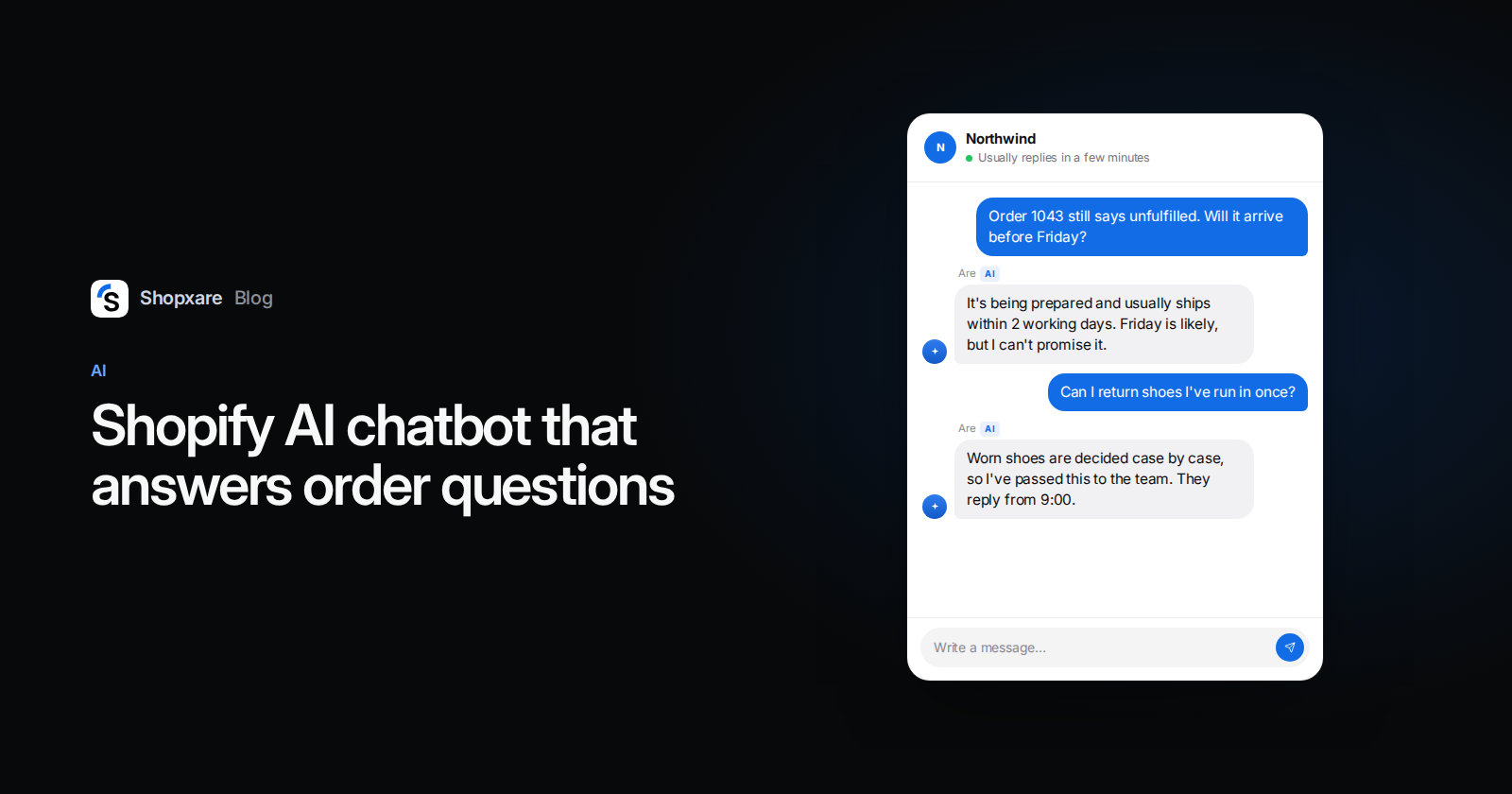
Short answer: Shopify now has its own AI chatbot. The Inbox agent in Shopify Inbox is free, works on the Basic plan and up, and answers from your catalog, policies and store pages. If you only sell on your Shopify store, use new customer accounts and want chat on the storefront, start there. Pick a separate AI chat app when you need email, marketplace or Telegram messages in the same inbox, your own handover rules, or more than one shop. Either way, quality depends on three things you control: clean policy pages, clear handover topics and a test with real customer questions before you switch it on.
Below: what Shopify's agent does and doesn't do (checked October 2026), when a separate app is the better pick, a six-step setup, a test sheet for Shopify stores and when to skip an AI chatbot altogether.
Option 1: Shopify Inbox's built-in agent
Shopify Inbox is listed as free on the Shopify App Store (4.6 stars from 5,807 reviews, October 2026). It now includes an Inbox agent, an AI that answers in your storefront chat. What Shopify's help center says about it, as of October 2026:
- Requirements. Inbox is available on the Basic, Grow, Advanced and Shopify Plus plans. The agent needs an active online store and new customer accounts: "The Inbox agent doesn't work with legacy customer accounts" (Shopify Help Center).
- Where you turn it on. Shopify admin, Sales channels > Inbox, then the Inbox agent section. You choose who it answers: All conversations, Only when your staff is unavailable, or Never. Stores that installed Inbox before the agent existed start on Never.
- What it knows. Your product catalog, store policies, Knowledge Base facts and files, and published storefront content (Shopify Help Center).
- What it can do. Answer product questions, recommend products, add them to the cart, and check order status. For orders, the customer is asked to sign in first. It replies in the customer's language.
- Handover. When a customer asks for a person or the agent can't answer, the chat moves to the Unassigned folder with the AI's context. If nobody is available, the customer gets your store's sender email address instead.
- Limits. Up to 100 agent replies per conversation for customers who aren't signed in, 1,000 for signed-in customers, and 50 conversations per customer per day (Shopify Help Center). It works only in your online store's chat widget.
- Disclosure. Customers see a notice that the chat is powered by Shopify and that they are chatting with AI. You can't remove or change it. If you use a custom privacy policy, Shopify asks you to add that Shopify processes chat data to generate responses and improve the agent.
Shopify also writes: "You're responsible for the accuracy of the information that the Inbox agent provides to your customers." That is true of every AI chatbot, and it is the reason the setup below starts with your policy pages and not with the chat widget.
Our view: for a single Shopify store with one or two people answering, the Inbox agent is the sensible first step. It costs nothing, it is already connected to your catalog, and add-to-cart from the chat is something most separate apps don't do.
Option 2: a separate AI chat app
A separate app makes sense when the questions arrive in more places than your storefront chat, or when you want more say in when the AI stops. Here is how the two compare, using Shopxare as the example of a separate app:
| What you need | Shopify Inbox agent | Separate app (Shopxare) |
|---|---|---|
| Where the AI answers | Storefront chat widget | Website chat (the Messenger) |
| Other channels in the same inbox | Storefront chat only; the agent can't send email | Email tickets, Telegram and marketplace messages (Amazon, eBay, Allegro, Trendyol and more) |
| Order status | After the customer signs in | Order number plus email or phone, from live order data |
| Legacy customer accounts | Agent doesn't work | Not required |
| Knowledge | Catalog, policies, Knowledge Base, storefront pages | Help center, website pages or sitemap, files (PDF, DOCX, TXT, MD, CSV), short answers, procedures |
| When it hands over | Customer asks for a person, or it can't answer | Also: customer upset, low confidence, a file is sent, or a topic on your list |
| Test before going live | Not described in Shopify's help pages; you rate chats to train it | Try it shows the answer, sources, confidence and whether it would hand over, without sending anything |
| Add to cart from chat | Yes | Shows products with price, stock and a link |
| Price | Free | Free; a monthly AI budget is included, then AI credit or your own API key |
| Install | Built in | A snippet in theme.liquid (not an App Store app) |
Four questions decide it:
- Does your store still use legacy customer accounts?
- Should email, marketplace or Telegram messages land in the same inbox as chat?
- Do you need your own handover rules (topics, low confidence, files)?
- Do you run more than one shop, or a shop outside Shopify?
No to all four: stay with the Inbox agent and still run the test sheet further down. One yes is enough to look at a separate app, and the steps below show what that setup involves.
Set up an AI chatbot on Shopify in 6 steps
The steps use Shopxare. Steps 1 and 6 apply to any tool, Shopify's included.
1. Fix the pages the AI will read
Open your shipping, returns, payment and contact pages and read them as a customer would. One fact per sentence, numbers written out ("Returns are accepted within 30 days of delivery"), no "usually" without saying what happens otherwise. Then search for old copies: a 2023 FAQ that still says 14 days will be quoted with full confidence. Shopify's own policies live under Settings > Policies, and both agents read them.
2. Add the chat to your theme
In Shopxare, go to Settings → Messenger → Install, pick Shopify and click Copy. In Shopify admin, open Online Store → Themes → … → Edit code, open layout/theme.liquid and paste the snippet just before </body>. Save and open your store in a private window. The snippet uses Liquid, so logged-in customers are recognised. To stop anyone from pretending to be one of your customers, switch on the user_hash line as described in the Shopify guide. Our earlier post on adding live chat to Shopify compares this with the App Store route.
3. Connect the store for orders
Go to Settings → Stores & marketplaces → Connect a store, choose Shopify, paste an Admin API access token and click Connect. Keys are stored encrypted and only read data. Then switch on Order tracking (customers enter the order number and the email or phone they used, and see status, items and tracking link) and Shopping assistant (the AI shows products with price and stock). Details are in Stores and orders.
4. Teach the AI
Under Are AI → Knowledge, click Add website, enter your store address and choose Sitemap (sitemap.xml). The crawl reads information pages such as shipping and returns first, spends at most 40% of pages on products and skips cart, account and search pages. Add Short answers for the ten facts customers ask most, for example "Do you ship to Switzerland?" How the sources rank is explained in Teach Are AI.
5. Decide when it stops
Under Are AI → Settings:
- Always hand over these topics: damaged or wrong items, address changes after dispatch, refunds outside the return window, wholesale and press.
- Rules for the AI: short rules in your words, for example "Never promise a delivery date. Give the carrier's estimate and the tracking link."
- When: start with Only outside office hours. You see real AI conversations every morning before you let it answer all day.
- Hide personal data from the AI provider: on. Emails, phone and card numbers are replaced before the text is sent to the AI provider.
Office hours themselves are set in Teams and assignment.
6. Test with real questions, then go live
Run the test sheet below in Are AI → Try it. When it passes, switch on Are AI in the Messenger. After the first week, open Are AI → Overview → Questions the AI could not answer, write the missing answers and save them. More on the rollout in our guide to an AI chatbot that answers from your own content.
A test sheet for Shopify stores
Copy the questions, replace the brackets with your own details and write down what should happen before you ask. Use real wording from past chats and emails where you can, typos included.
ORDERS                                              Expected
1. Where is my order [real order number]?           Answer: status + tracking link
2. My tracking hasn't moved for 4 days              Answer, then offer a person
3. Can I change my delivery address? (shipped)      Hand over
4. I ordered twice by mistake                       Hand over
5. When will my order arrive? I need it by Friday   Answer: estimate, no promise

POLICIES
6. How long do I have to return something?          Answer: [30 days], from returns page
7. Do I pay for return shipping?                    Answer: [your rule]
8. Can I return a sale item?                        Answer: [your rule]
9. Do you ship to [country you don't ship to]?      Answer: no, plus what's possible
10. Which payment methods do you accept?            Answer: [list]

PRODUCTS
11. Is [product] true to size?                      Answer from product page, or hand over
12. Do you have [product] in [size] in stock?       Answer: live stock
13. What's the difference between [A] and [B]?      Answer from both product pages

HANDOVER
14. The item arrived broken                         Hand over at once
15. I want to talk to a human                       Hand over at once

Pass: 14 of 15 right, and zero wrong policy answers.
A wrong return window or a promised delivery date is a fail even if the other 14 are perfect. Fix the source page, not the answer, and run the sheet again.
Example: a running shoe store at 22:40
An illustration, not a real customer: a store sells running shoes on Shopify, two people answer from 9:00 to 17:00, and the AI covers evenings. A customer writes on Tuesday night:
Customer: Order 1043 still says unfulfilled, I ordered on Saturday. Will it arrive before Friday?
AI: Your order 1043 was placed on Saturday and is being prepared. Orders usually leave within 2 working days and DHL then needs 1–2 days, so Friday is likely but I can't promise it. You'll get the tracking link by email as soon as it ships. Should I ask the team to check it first thing tomorrow?
Customer: Yes. And can I return them if I've run in them once?
AI: Our returns page says shoes can be returned within 30 days if they are unworn. For worn shoes, the team decides case by case, so I've passed your question on. They start at 9:00 and you'll get the reply here and by email.
Two things made this work: a rule against promising dates, and "returns of used items" on the always-hand-over list. Without them, the most likely answer to the second question is a cheerful yes.
When not to use an AI chatbot on Shopify
- You get a handful of chats a day and answer within minutes. Saved replies will do more for you than an AI.
- Your policies aren't written down. The AI can only repeat what is on the page. Write them first.
- Your products need advice you could be liable for. Supplements, medical devices or anything where a wrong answer causes harm. Let the AI handle orders and shipping, and send product advice to a person.
- Nobody will read the AI's conversations. Plan 20 minutes a week for the first month. Without that, mistakes repeat quietly.
FAQ
Does Shopify have a built-in AI chatbot?
Yes. Shopify Inbox includes the Inbox agent, which you turn on under Sales channels > Inbox. It is free, opt-in, available on the Basic plan and higher, and needs new customer accounts.
Can an AI chatbot track Shopify orders?
Yes, if it is connected to your store. Shopify's agent asks the customer to sign in before it shares order details. Shopxare looks the order up with the order number and the email or phone used, from live order data.
Is a Shopify AI chatbot free?
Shopify Inbox is free. Most App Store chatbots charge per AI conversation or resolution. Shopxare is free and includes a monthly AI budget; after that you can buy AI credit or use your own OpenAI, Gemini or Anthropic key.
How do I add a chatbot to Shopify without an app?
Paste the chat tool's code into layout/theme.liquid just before </body> under Online Store → Themes → Edit code, then save and check the store in a private window.
Do I have to tell customers they are talking to an AI?
In the EU, yes. Article 50(1) of the AI Act requires that people are told they are interacting with an AI system unless it is obvious, and it has applied since 2 August 2026. Shopify's agent shows this notice automatically; with any other tool, say it in the greeting or the AI's name.
Shopxare is free, with no credit card. Create a workspace, connect your Shopify store and run the test sheet in Try it before a single customer sees an AI answer.