
 Shopxare Team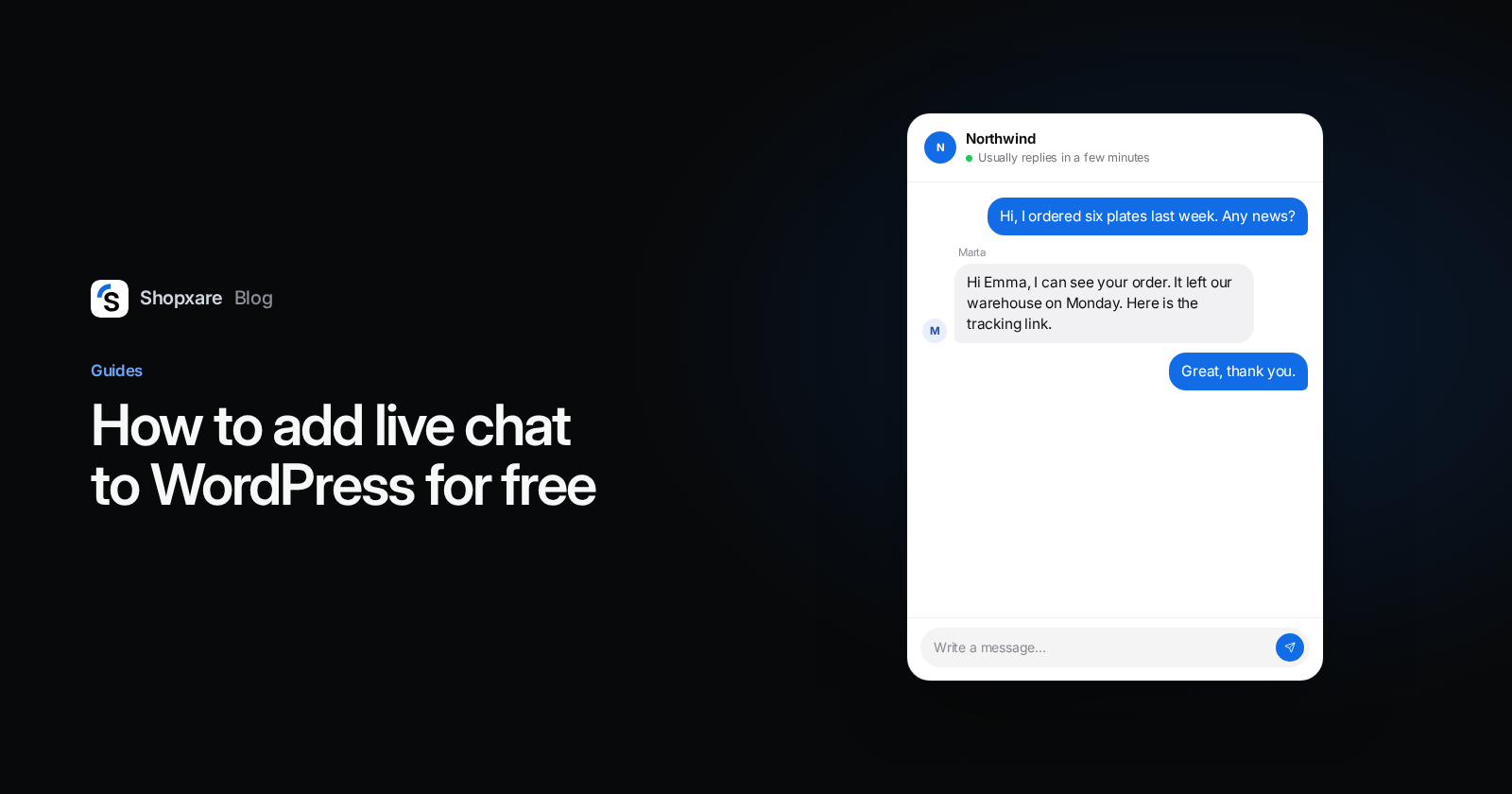
To add live chat to a WordPress site, install a chat plugin, connect it to your chat account and check that the chat button shows on your pages. If you cannot install plugins, paste the chat tool's snippet just before the closing </body> tag, or load it through Google Tag Manager. On a WooCommerce store, choose the plugin: it recognises logged-in customers and shows their orders and cart to your team without extra code.
The steps below use Shopxare, which is free and asks for no credit card. The logic of the three methods carries over to other chat tools.
Three ways to add chat, compared
WordPress runs 40.1% of all websites, and 19.8% of those WordPress sites run WooCommerce (W3Techs, October 2026). That is why almost every chat tool offers the same three routes. They are not equal.
| Plugin | Snippet in the footer | Google Tag Manager | |
|---|---|---|---|
| Best for | Most sites and every WooCommerce store | Sites where you cannot add plugins | Teams that already manage all scripts in GTM |
| What you need | WordPress admin access | Access to the theme footer or a header/footer plugin | Publish rights in the GTM container |
| Recognises logged-in users | Yes, automatically | Only with your own code | Only with your own code |
| WooCommerce orders and cart next to the chat | Yes | Not out of the box | Not out of the box |
| Watch out for | One more plugin to keep updated | Edits to theme files are lost on theme updates | Chat waits for whatever your tags wait for, such as cookie consent |
The two middle rows describe Shopxare; check them for any other tool you consider.
My recommendation: use the plugin unless something stops you. It survives a theme change, and it is the route that gives your team context about the customer.
Before you install: decide who answers, and when
A chat button nobody answers is worse than no chat button, because the visitor has now asked and been ignored. Settle three things first:
- Who receives new conversations: one person, or the team in turn.
- Your support hours.
- What a visitor sees outside those hours.
In Shopxare, office hours and assignment live under Settings → Teams & assignment (docs). For the hours when nobody is there, either turn on Email when nobody is online, so the visitor leaves an address and you reply by email, or hide the chat button while no one is online. Both are in Settings → Messenger (Customize the Messenger).
Method 1: the plugin (recommended)

- In Shopxare, open Settings → Messenger → Install → WordPress and download the plugin file.
- In WordPress, go to Plugins → Add New (the label differs slightly between WordPress versions), click Upload Plugin, choose the file and click Install Now. WordPress documents this upload flow in Manage plugins.
- Activate Shopxare Live Chat.
- Open Settings → Shopxare Live Chat and click Connect with Shopxare.
- Confirm the workspace. The Messenger now loads on every page of your site.
Beyond the button, the plugin does two things the other methods do not. It recognises logged-in users and verifies their identity automatically, so nobody can pose as another customer. And if WooCommerce is installed, your team sees the customer's orders and current cart next to the conversation. Details are in the WordPress and WooCommerce guide.
Method 2: paste the snippet in the footer
Use this when you cannot or do not want to add a plugin.
- Copy your snippet from Settings → Messenger → Install.
- Paste it just before the closing
</body>tag. In WordPress that means your theme's footer or, the safer option, a header/footer code plugin. - Clear your page cache, then reload the site. The button appears in the corner.
One warning. If you edit the theme's files directly, the next theme update removes your change. WordPress recommends a child theme for exactly this reason (Child themes). The full snippet instructions are in Install the Messenger.
Method 3: Google Tag Manager
This fits teams that already load every script through GTM and want one place to manage them.
- Create a new tag of type Custom HTML.
- Paste the snippet and set the trigger to All Pages.
- Submit, then publish the container.
Two honest cautions. Google says the best way to avoid performance and malware issues is to use Tag Manager's built-in templates rather than custom code (Tag Manager Help), so paste the vendor snippet unchanged and nothing else. And the chat inherits the tag's conditions: if your container holds tags back until a visitor accepts cookies, the chat button is held back too. That may be what you want. Decide it on purpose.
Six checks after installing
- Open the site in a private window. The button should be in the corner. If it is not, clear the cache of your caching plugin, and of your CDN if you use one.
- Send yourself a message. Answer it from the inbox on your computer, then answer the next one from your phone. Shopxare Mobile for iPhone and Android lets you reply straight from the notification (apps).
- Look at the cookie banner. If it sits on top of the chat button, increase the button's distance from the edge under Settings → Messenger → Launcher.
- Open a product page on a phone. The button must not cover "Add to cart" or a sticky checkout bar. Move it to the other side, or hide it on phones.
- Lock the Messenger to your domain under Settings → Messenger → Security → Allowed websites, so your snippet cannot be loaded from someone else's site.
- Measure speed before and after with PageSpeed Insights. Google's web.dev advises loading third-party scripts asynchronously unless they are needed to render the page (web.dev, 2019). The Shopxare loader is an async script. Measure anyway; do not take any vendor's word for it, including ours.
Example: "Where is my order?" on a WooCommerce store
Picture a store that sells ceramic tableware, with the plugin installed. Emma is logged in and writes on a Tuesday evening:
Hi, I ordered six plates last week. Any news?
The agent sees Emma's recent orders next to the conversation, opens the latest one and replies:
Hi Emma, I can see your order of six plates from last Wednesday. It left our warehouse on Monday. Here is the tracking link. Anything else I can check for you?
No "What is your order number?" and no "Which email did you use?". That saved round trip is the practical reason to pick the plugin on a store.
Let Are AI take the repeat questions
Shipping times, returns, payment methods: the same questions arrive every day. Are AI, Shopxare's AI agent, answers them from your own content: help center articles, short question-and-answer pairs, pages of your website and files such as PDF or DOCX. When it reads your site, it takes the information pages first (shipping, returns, payment, contact, policies).
It hands the conversation to a person when the customer asks for one, when the topic is sensitive, when the customer is angry or when it is not confident in its answer. You can test questions under Are AI → Try it before any customer sees a reply (Are AI docs).
The limit is plain: Are AI knows only what you gave it. If your returns policy lives in someone's head, write it down first.
When another setup is the better choice
- You want to install by searching the plugin directory inside WordPress. Shopxare's plugin is a file you download and upload. tawk.to's plugin is listed in the WordPress.org directory, where it is described as completely free and shows 100,000+ active installations (WordPress.org, as of October 2026).
- Your business already runs on HubSpot. HubSpot's WordPress plugin connects chat to its CRM (HubSpot, as of October 2026). One tool fewer is the better choice there.
- Your customers mostly write on WhatsApp or Instagram. Shopxare covers website chat, email and Telegram today. WhatsApp, Instagram and Facebook Messenger channels are on the way. If those are where most of your conversations happen now, pick a tool that has them now.
- Nobody can answer. Publish a help page and a contact form instead, and add chat when someone owns it.
FAQ
Is there a free live chat for WordPress?
Yes. Shopxare has one plan today and it is free, with no credit card (pricing). tawk.to's plugin is also described as completely free in the WordPress.org directory (as of October 2026).
Can I add live chat to WordPress without a plugin?
Yes. Paste the chat snippet just before the closing </body> tag, or add it as a Custom HTML tag in Google Tag Manager. With Shopxare you then lose the automatic recognition of logged-in users and the WooCommerce context, unless you add that with your own code.
Does live chat slow down a WordPress site?
It adds a third-party script, so it can. A chat script that loads asynchronously does not block the page from rendering. Test your own site with PageSpeed Insights before and after installing.
Why is the chat not showing after I installed it?
Most often it is the page cache. Clear your caching plugin and your CDN. Then check that your domain is listed under Allowed websites, and that the button is not set to hide on phones or while no one is online.
Does it work with WooCommerce?
Yes. With the Shopxare plugin and WooCommerce installed, your team sees the customer's orders and current cart beside the conversation.
Shopxare is free and needs no credit card. Create a workspace, upload the plugin and send yourself the first message.