 Shopxare Team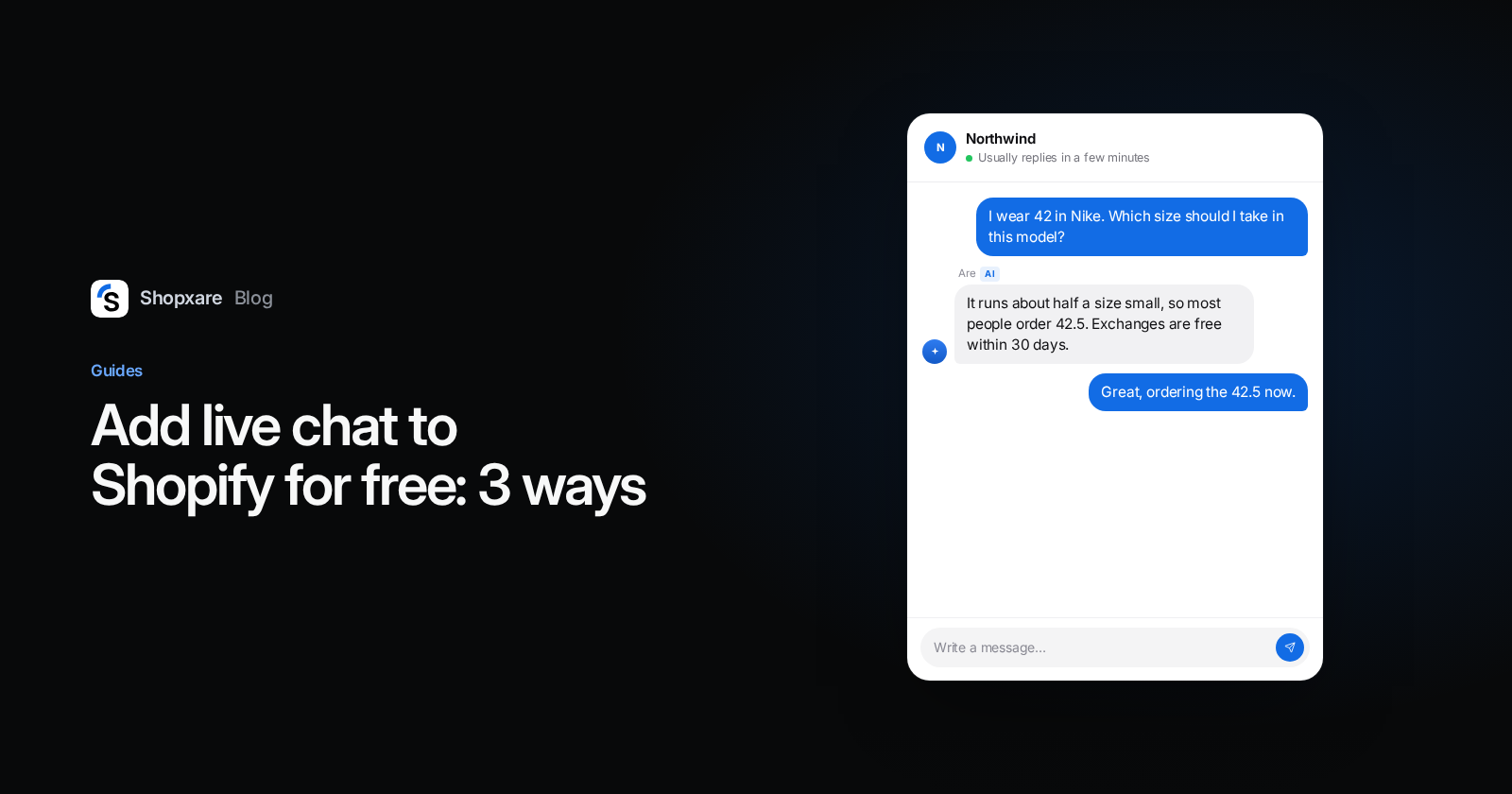
There are three free ways to add live chat to a Shopify store. You can install Shopify's own Shopify Inbox app and switch on its chat under App embeds in the theme editor, install another chat app from the Shopify App Store that adds its own app embed, or paste a chat tool's snippet into layout/theme.liquid just above </body>. Shopify Inbox is the quickest choice if all your customers reach you through one Shopify store. A snippet-based tool is the better fit when you also answer email, run more than one site, or want one shared inbox for the whole team.
None of the three needs a developer. Below are the exact steps for each, six checks to run after installing, and an honest note on when Shopify's own app is the better pick.
The three ways side by side
| Shopify Inbox | Chat app from the App Store | Snippet in theme.liquid | |
|---|---|---|---|
| Where you switch it on | Theme editor > App embeds > Online store chat | Theme editor > App embeds > the app's toggle | Edit code > layout/theme.liquid |
| Code | None | None | Copy and paste one snippet |
| Price (as of October 2026) | Free | Depends on the app | Depends on the tool (Shopxare is free) |
| Where you answer | inbox.shopify.com and the Shopify Inbox mobile app | The app's own dashboard | The tool's inbox (Shopxare: web, mobile and desktop apps) |
| How to remove it | Turn the embed off or uninstall | Turn the embed off or uninstall | Delete the snippet |
| Best for | Stores that sell only on Shopify, small team | When one app has a feature you need | One inbox for several sites, email and Telegram |
Way 1: Shopify Inbox, Shopify's own chat app
Shopify Inbox is listed as free on the Shopify App Store, with a 4.6 out of 5 rating from 5,811 reviews (checked October 2026). The listing says it connects to your catalog, inventory and policies on its own, and it includes an AI agent whose tone and rules you can set.
- Install Shopify Inbox from the Shopify App Store.
- In your Shopify admin, go to Online Store and click Edit theme next to your live theme.
- Select App embeds, then Online store chat, and turn the toggle on.
- In the same panel, set the colors, the chat button icon and position, and the greeting message.
- Click Save.
These steps come from Shopify's chat settings guide. Settings such as "Require sign-in to chat with staff" live in a different place: Sales channels > Inbox > Overview > Chat settings. You and your staff answer at inbox.shopify.com or in the Shopify Inbox app for iOS and Android (Shopify Help Center).
Two limits to know before you commit. The App Store listing names only Shopify Admin and the Online Store as its channels, so it is built around one Shopify store. And staff need the Products, Customers, Discounts, Draft orders and "Manage and install apps and channels" permissions to use it, according to the same help page.
Way 2: a chat app from the App Store
Most chat apps on the App Store add themselves through an app embed, so you never touch code. Shopify's app embed steps are the same for every app:
- Install the app from the Shopify App Store.
- Go to Online Store and click Edit theme.
- In the sidebar, click the App embeds icon.
- Find the app and click the toggle beside it.
- Click Save, then preview your store.
The choice is the hard part. The "live chat" search on the App Store is crowded, and free plans differ in what they limit: seats, conversations, AI answers or branding. Read the pricing page, not the listing headline. We compared the free plans of the bigger names in our tawk.to alternatives post.
Way 3: paste a snippet into theme.liquid
This works with any chat tool that gives you an HTML snippet, and it is how you add the Shopxare Messenger to Shopify.
- Back up your theme first. In Online Store > Themes, click the … menu next to your theme and choose Duplicate. Shopify recommends this before editing code (Shopify Help Center).
- In Shopxare, go to Settings > Messenger > Install > Shopify and copy the snippet.
- In your Shopify admin, go to Online Store > Themes, click the … menu next to your live theme and choose Edit code.
- Open
layout/theme.liquid, find the closing</body>tag and paste the snippet directly above it. - Click Save, then open your store in a private browser window. The chat launcher appears in the bottom corner.
The full guide is in the Shopify docs. The Shopify snippet recognizes customers who are logged in to your store, so your team sees their orders and cart next to the conversation. If you want to be sure nobody can pretend to be one of your customers, turn on identity verification: remove the // in front of the user_hash line in the snippet and replace IDENTITY_SECRET with the secret from Settings > Messenger > Security.
One thing to watch with theme updates. When you update your theme, Shopify carries your code edits over unless they conflict with the update. If they can't be included, the theme card says "Theme added: code edits could not be included" and you need to paste the snippet into the new version yourself (Shopify Help Center). After every theme update, check that the launcher is still there.
Six checks after you install
- Look at it on a phone. Open a product page in a private window. If the chat button covers the "Add to cart" button or a sticky bar, move it. In Shopxare you change the position under Customize the Messenger.
- Send yourself a test message and answer it from your phone, so you know notifications reach you. Shopxare Mobile is free on every plan (mobile apps).
- Don't expect chat in checkout. Shopify's checkout is not part of your theme layout.
checkout.liquidis no longer supported for the Information, Shipping and Payment steps, and script tags on the Thank you and Order status pages stopped working for non-Plus stores on August 26, 2026 (Shopify developer docs). Put your chat effort into product and cart pages. - Set office hours and an away message, so a visitor writing at 23:00 knows when to expect a reply. Copy one from our after-hours message templates.
- Prepare saved replies for your top five questions: delivery time, returns, sizing, order status and discount codes. In Shopxare you insert them with "/" (saved replies).
- Make sure there is only one chat. If you tried another app before, turn its app embed off or uninstall it. Two launchers on one page confuse customers and split your conversations.
Example: a small running-shoe store
A fictional store sells running shoes on Shopify with two people on support. At 21:40, a visitor on a product page writes:
"I wear 42 in Nike. Which size should I take in this model?"
Nobody is online. With Shopxare, Are AI answers from the store's own size guide and returns page:
"This model runs about half a size small, so most people who wear 42 in Nike order 42.5. If it doesn't fit, you can exchange it within 30 days for free. Want me to pass this to the team so they can confirm in the morning?"
The size advice and the 30 days come from the store's pages, not from the AI's general knowledge. When a question is outside that content, such as a damaged parcel, Are AI hands the conversation to a person. We walk through that setup step by step in AI chatbot for your website. For order status questions, data connectors let Are AI look up orders in your own systems.
When Shopify Inbox is the better choice
Pick Shopify Inbox if Shopify is your only sales channel, one to three people answer chats, and you want an AI agent that reads your catalog without any setup. It lives inside your Shopify admin and costs nothing.
Pick a tool like Shopxare when the chat is only part of your support:
- you also answer email and want it as tickets in the same inbox;
- you run more than one site, for example a Shopify store and a WordPress blog;
- several people need teams and automatic assignment and reports on reply times;
- customers write to you on Telegram, or in other languages (live translation).
WhatsApp, Instagram and Facebook Messenger channels are on the way in Shopxare but not available yet. If those are your main channels today, factor that in.
Shopxare has one plan today and it is free, no credit card needed. You can create an account and have the Messenger on your Shopify store in about the time it takes to duplicate your theme.
FAQ
Does Shopify have a built-in live chat?
Yes. Shopify Inbox is Shopify's own free chat app. Install it from the App Store, then turn on Online store chat under App embeds in the theme editor.
Is Shopify Inbox free?
As of October 2026, the App Store lists Shopify Inbox as free, with no paid tiers shown.
How do I add a chat to Shopify without an app?
Copy your chat tool's HTML snippet and paste it into layout/theme.liquid directly above </body> (Online Store > Themes > … > Edit code). Duplicate your theme first as a backup.
Why doesn't the chat show on my checkout page?
Shopify's checkout is not part of your theme, so a chat added through the theme does not load there. Since August 26, 2026, script tags no longer run on the Thank you and Order status pages for non-Plus stores either.
How do I remove a live chat from Shopify?
Turn off the app's toggle under App embeds and uninstall the app, or delete the snippet from theme.liquid if you added it by hand.