 Shopxare Team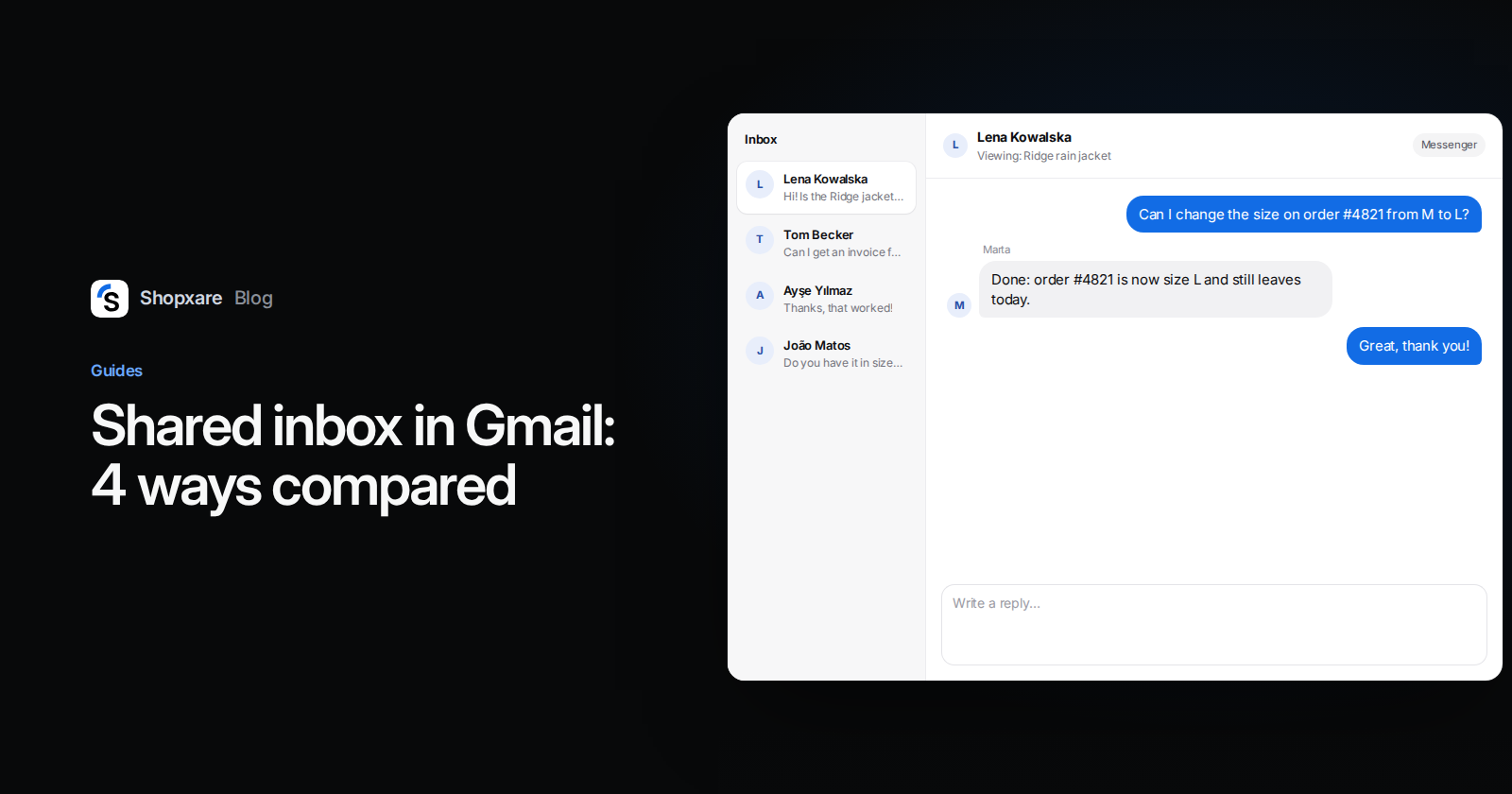
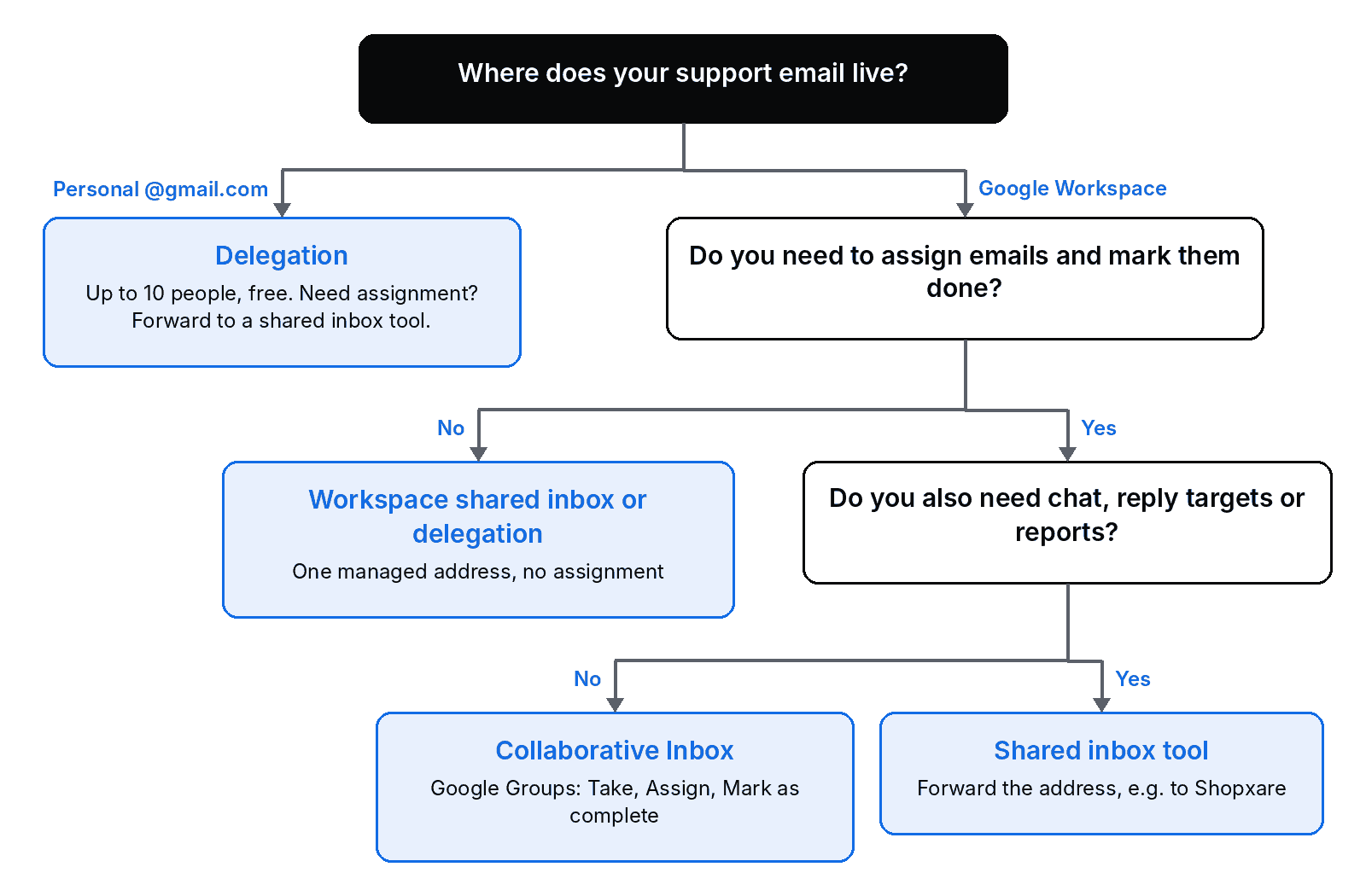
Short answer: a personal Gmail account has no "shared inbox" button, but you can share one address four ways. Delegation lets up to 10 people read and reply from the same @gmail.com account for free (up to 1,000 on a work account). On Google Workspace you can use a Google Group as a Collaborative Inbox, where people take and assign emails, or the new shared inbox that admins create in the Admin console. When you also need assignment rules, reply targets and reports, forward the address to a shared inbox tool. The table below tells you which one fits, and each method has its exact steps.
Which method fits your team
| Delegation | Collaborative Inbox (Google Groups) | Workspace shared inbox | Shared inbox tool | |
|---|---|---|---|---|
| Account you need | Any Google Account | Google Workspace (work or school) | Workspace Business Starter, Standard or Plus | Any mailbox that can forward |
| Extra cost | None | None beyond Workspace | None beyond Workspace | Depends on the tool |
| How many people | 10 on @gmail.com, 1,000 on work accounts | Group members | Not stated by Google | Depends on the tool |
| Assign an email to someone | No | Yes (Take, Assign) | No | Yes, also automatically |
| Mark as done | No (labels and archive only) | Yes (Mark as complete) | No | Yes (statuses) |
| Customer sees who replied | Yes, the delegate's address | Depends on how you send | Yes, "Sent by" the teammate | Depends on the tool |
| Best for | 2–3 people, low volume | 3–15 people who need to split the work | Admins who want one managed address | Teams that also answer chat or need reports |
Our opinion: start with the simplest method that stops two people answering the same email. For two people on one address, delegation is enough. Once a third person joins or you lose track of who handles what, you need assignment.
Method 1: Delegate access to one Gmail account
Delegation gives teammates access to the mailbox from their own Google Account. Nobody shares a password. Delegates can read, send and delete messages, but they can't chat, change the password or open the account's Google settings (Gmail Help, checked October 2026).
- Sign in to the shared account (for example [email protected]) in Gmail on a computer. You can't add delegates from the Gmail app.
- Click the gear icon, then See all settings.
- Open the Accounts and Import tab (on work accounts it may be called Accounts).
- In Grant access to your account, click Add another account.
- Enter your teammate's email address, click Next Step, then Send email to grant access.
- Your teammate accepts the invitation within a week. Access can take up to 24 hours to appear.
- The teammate opens the shared mailbox by clicking their profile picture in Gmail and choosing the delegated account.
Limits worth knowing: a personal @gmail.com account takes up to 10 delegates, a work or school account up to 1,000, and with typical use about 40 can be in the mailbox at the same time. When a delegate sends a message, their own address appears on it. That is honest, but it also shows the customer a personal address.
What delegation doesn't do: there is no way to see who is answering an email right now, no assignment and no "done" state. Teams usually start using labels such as "Ali" or "Waiting" to fake it. That works for 20 emails a day and breaks at 80.
Method 2: Use a Google Group as a Collaborative Inbox
This is the free way to assign emails in Google Workspace. Customers write to the group address (support@), every member sees the conversation in Google Groups, and one person takes it.
- Create a group at groups.google.com with the address customers will write to, and add the people who answer.
- Make sure conversation history is on for the group.
- Open the group, choose Group settings in the left menu, and under Enable additional Google Groups features tick Collaborative Inbox (Google Workspace Learning Center, checked October 2026).
- Under Who can moderate metadata, choose who may take, assign and complete conversations. Who can moderate content covers marking duplicates and "no action needed".
- So customers outside your company can write in, set the group's posting permission to Anyone on the web. If that option is missing, your admin has to allow incoming email from outside the organization for the domain.
- Each teammate adds the group address under Send mail as in Gmail (See all settings → Accounts), so replies go out from support@ and not from their own address (Gmail Help).
Daily use: open a conversation and click Take, or Assign it to a colleague by email address. When it's answered, click Mark as complete. Drop removes the assignment (Google Groups Help).
The weak spot is the split screen. People read and assign in Google Groups but reply in Gmail, and there are no response-time reports. For larger teams, Google's own page recommends delegated accounts instead.
Method 3: Create a shared inbox in the Google Admin console
Google has added a native shared inbox for Workspace Business Starter, Business Standard and Business Plus. It is "being released in phases", so your console may not show it yet (Google Workspace Admin Help, checked October 2026).
- Sign in to the Google Admin console as an administrator.
- On the Home page, in the Users section, click Set up a shared email address.
- Enter the shared address, add the teammates who should have access, and click Next. Don't skip this step: without it nobody can open the inbox.
- Review and click Done. To convert an existing account, enter its address in the same flow and pick the delegates.
Messages from the shared inbox show the shared address in "From" and the teammate in "Sent by", unless you hide that in the shared inbox settings. It is the cleanest native option for identity and access. It still has no assignment or statuses, so it solves "who can get in" and not "who is answering". Workspace Business Starter costs $7 per user per month in the US (excluding tax, Google Workspace pricing, October 2026); prices differ by country.
Method 4: Forward the address to a shared inbox tool
If your team also answers website chat, needs reply targets or wants to know how long customers wait, Gmail isn't the right place to work. Keep the address and forward it.
With Shopxare, for example:
- In Shopxare, go to Settings → Email & tickets, copy the Forwarding address and choose Gmail / Google Workspace to see the steps for your provider.
- In Gmail, open See all settings → Forwarding and POP/IMAP, click Add a forwarding address, paste it and confirm. Then select Forward a copy of incoming mail to and save (Gmail Help).
- Send a test email to your support address. It should appear in the Shopxare inbox.
- To reply from support@ itself, fill in Own SMTP server (optional) and Your support address. Otherwise replies are sent under your name with Reply-To set to your inbox.
- Turn on Create tickets from new emails and Acknowledge new requests if you want every email to get a ticket number. Tickets move through Submitted, In progress, Waiting on customer and Resolved (tickets and email).
- Under Settings → Teams & assignment, pick Round robin or Balanced assignment and set Response-time targets (SLA) in working minutes (teams and assignment).
Email, the Messenger on your site, Telegram and marketplace messages then land in one inbox, and reports show response times per teammate.
When another tool is the better pick: if your team wants to keep working inside Gmail's own interface, an add-on that lives in Gmail (Hiver and Gmelius are built for this) fits better than any separate inbox. If you only handle email and need a mature help desk, see our comparison of free ticketing systems.
Don't share the password
Handing everyone the support@ password is the most common setup and the worst one. Nobody can tell who sent which reply, 2-step verification codes go to one person's phone, and when someone leaves you have to change the password for everyone. Every method above avoids it.
Example: a three-person store moves off one login
A home-goods store in Leeds gets about 40 emails a day to support@, on Google Workspace. Three people share the password. On a Monday, two of them answer the same customer within ten minutes with different delivery dates.
They switch to a Collaborative Inbox that afternoon. The next morning a customer writes: "Can I change the size on order #4821 from M to L?" Priya clicks Take, checks that the order hasn't been packed, and replies from support@:
Hi Tom, done: order #4821 is now size L and still leaves today. Same price, so nothing to pay. Priya
Then she clicks Mark as complete. Nobody else touches it.
Three months later they add a chat on the website and want to know their first response time. That's when they forward support@ to a shared inbox tool, because Groups has no chat and no reports.
FAQ
Can you create a shared inbox in a free Gmail account?
Not as a separate inbox, but delegation works on personal @gmail.com accounts: up to 10 people can open the same mailbox from their own Google Accounts, with no password sharing and no cost.
Can two people use the same Gmail account at the same time?
Yes. With delegation, about 40 people can be in the mailbox at once with typical use. Gmail won't show you if a colleague is already replying, so agree who handles what or use a Collaborative Inbox.
What is the difference between a Collaborative Inbox and a shared mailbox?
A Collaborative Inbox is a Google Group with assignment and "complete" status. A shared mailbox is one email account several people can open. The first organizes the work, the second only shares access.
Does Google Workspace have a shared mailbox?
Yes, for Business Starter, Standard and Plus. Admins create it under Users → Set up a shared email address in the Admin console. It is rolling out in phases.
How do customers see who replied from a shared inbox?
With delegation they see the delegate's address. With the Workspace shared inbox they see the shared address in "From" and the teammate in "Sent by". With a shared inbox tool it depends on the tool's sender settings.
Shopxare is free, with no credit card. If you want email, chat and assignment in one place, connect your support address and keep using it as before.