 Shopxare Team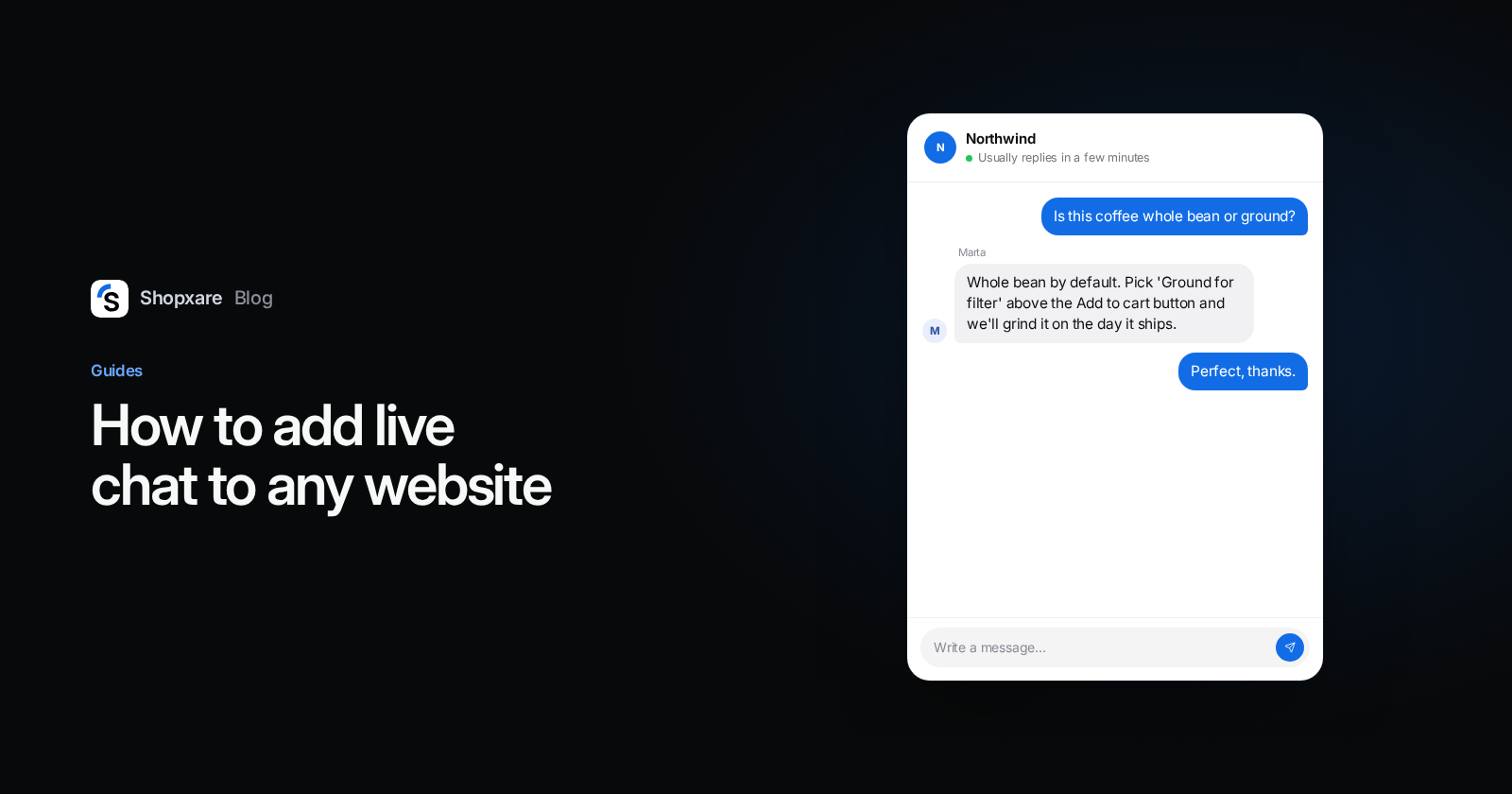
To add live chat to a website, you copy your chat tool's code snippet and load it on every page. You have four ways to do that: paste it just before the closing </body> tag in your site's shared layout, add it in Google Tag Manager as a Custom HTML tag with the All Pages trigger, or use your site builder's code field (Wix: Custom Code, placed in Body - end; Squarespace: Code Injection, Footer). Then open the site in a private window and send yourself a test message, because a chat that loads but notifies nobody is worse than no chat at all.
WordPress, Shopify and ikas have their own install paths that need little or no code; they're covered at the end. The examples below use the Shopxare Messenger, but the method is the same for almost every chat tool that gives you a snippet.
Which route fits your site
| Route | Use it when | Where the code goes | Watch out for |
|---|---|---|---|
| Edit the HTML | You or a developer can change the site template | Shared layout or footer file, just before </body> |
Paste it once in the shared file, not page by page |
| Google Tag Manager | GTM already runs on every page and the template is hard to change | Custom HTML tag, trigger All Pages | Consent settings, logged-in customers |
| Wix | Published Wix site with a connected domain | Settings > Custom Code, Body - end | Changing the primary domain deletes the code |
| Squarespace | Core, Plus, Advanced or some legacy plans | Code Injection > Footer | No custom code on checkout pages |
| WordPress / WooCommerce, Shopify, ikas | You run one of these platforms | Plugin, theme snippet or app | See the platform guides below |
My recommendation: if you can edit the template, do that. Tag Manager is a good fallback when it is the only place you're allowed to add code, but it adds a dependency. Whoever manages the container can switch your chat off without knowing it, and a consent setup can hide it from visitors who decline cookies.
Before you start: copy the snippet
- Create your Shopxare account and go to Settings → Messenger → Install.
- Pick Any website and copy the snippet. It looks like this, with your own App ID filled in:
<script>
  window.Shopxare = window.Shopxare || function () { (Shopxare.q = Shopxare.q || []).push(arguments) };
  Shopxare('boot', { app_id: 'YOUR_APP_ID' });
</script>
<script async src="https://app.shopxare.com/widget/v1/loader.js"></script>
- Once the chat works, go to Settings → Messenger → Security → Allowed websites and list your domains. If the list is empty, the Messenger loads on any website, so filling it in keeps your snippet tied to your own sites.
The full reference is in Install the Messenger.
Route 1: paste the code into your site's HTML
- Find the file every page shares. On most sites that is a layout or footer template, for example
footer.php,layout.htmlor a footer partial. A plain static site with separate HTML files has no shared file, so you paste the snippet into each one. - Paste the snippet just before the closing
</body>tag. - Upload or deploy the change, then reload the site with the cache cleared.
If your CMS has a field called "footer scripts", "custom code" or similar, that field does the same job. Use it instead of editing files.
Single-page apps built with React, Vue or similar need nothing extra. Put the snippet in index.html once; the Messenger detects page changes on its own, so your team still sees which page the customer is on.
Route 2: add live chat with Google Tag Manager
- Open your container at tagmanager.google.com and go to Tags > New.
- Click Tag Configuration and choose Custom HTML. Paste the whole snippet, both
<script>blocks. Google's own rule is to always keep JavaScript inside<script>tags (Tag Manager Help). - Click Triggering and choose All Pages.
- Open Advanced Settings > Consent Settings. By default, Additional Consent Checks is Not set. If your cookie banner controls tags through consent types, you can choose Require additional consent for tag to fire and add the type your banner uses for functional cookies (Tag Manager Help). Ask whoever owns your cookie banner which type fits. Keep the trade-off in mind: with consent required, visitors who decline won't see the chat.
- Click Preview, enter your site's URL and click Connect (Tag Manager Help). In the debug view, check that your chat tag fired, and check that the launcher appears on the site.
- Click Submit, then Publish.
Tag Manager minifies Custom HTML code and can turn single quotes into double quotes. That doesn't affect this snippet, so don't worry if the saved version looks slightly different.
When not to use Tag Manager
- You want to recognize logged-in customers. Identity verification needs a
user_hashthat your server calculates with a secret, and that secret must stay on the server. Tag Manager can't calculate it, so your page template has to output it anyway. In that case, put the boot code in the template and passuser_id,user_hash,emailandnamethere (JavaScript API). - Your site runs on Wix. Wix says tracking tools such as Google Tag Manager don't work through its custom code feature (Wix Help Center). Paste the chat snippet straight into Custom Code instead (Route 3).
- The snippet is already in your theme. Load it from one place only. Two copies make debugging harder and leave you guessing which one to change later.
Route 3: add live chat to a Wix site
Wix asks for two things first: the site must be published and it must have a connected domain (Wix Help Center).
- In your site's dashboard, go to Settings.
- Under Development & integrations, click Custom Code.
- Click + Add Custom Code, paste the snippet and give it a name such as "Live chat".
- Under Add Code to Pages, choose All pages.
- Under Place Code in, choose Body - end.
- Click Apply, then open your live site.
Two Wix details that catch people out. Custom code is tied to your domain: if you assign a different primary domain, Wix deletes your snippets and you add them again. And Wix notes that since December 2025 its frontend security measures may block some third-party snippets until the provider updates them. If the launcher doesn't show up, contact the chat provider; Wix doesn't support third-party code.
Route 4: add live chat to a Squarespace site
Code injection is available on the Core, Plus and Advanced plans and some legacy billing plans (Squarespace Help Center).
- Open the Code Injection panel. The help article above links straight to it.
- Paste the snippet into Footer. Squarespace places footer code just before the closing
</body>tag on every page. - Click Save and reload your site.
Squarespace checkout pages don't support custom code, so the chat won't show there. Plan for it: answer payment and delivery questions on the cart and product pages, where the chat does load.
WordPress, WooCommerce, Shopify and ikas
These platforms have a better route than a raw snippet, because the integration can also send customer and cart data to your inbox. The WooCommerce plugin and the Shopify snippet send shop details such as orders and cart total automatically, and they show up as a Shop card next to the conversation.
- WordPress and WooCommerce: install the plugin. Step by step in How to add live chat to WordPress and the WordPress docs.
- Shopify: paste the theme snippet into
theme.liquid. See How to add live chat to Shopify. - ikas: install the app in one step, no code (ikas docs).
Test it in five minutes
- Open the site in a private window, on desktop and on your phone. The launcher should appear in the corner. On mobile, check that it doesn't cover the "Add to cart" button or your cookie banner. You can move it in Customize the Messenger.
- Send yourself a test message and answer it from your phone. Shopxare Mobile is free on every plan (mobile and desktop apps). If the notification never arrives, fix that before you tell customers the chat exists.
- Click to another page in the middle of the conversation. The conversation should still be there.
- Decline cookies in your banner and reload. Do you still see the chat? Either answer can be right, but it should be a decision, not a surprise.
- Check that the snippet loads once. View the page source or use Tag Assistant. One copy in the template plus one in Tag Manager is an easy mistake to make.
Example: a small coffee shop online
A fictional coffee roaster sells beans on a hand-built website that already uses Google Tag Manager. The owner adds the Messenger as a Custom HTML tag on a Tuesday morning and tests it from her phone. At 14:10 a visitor on a product page writes:
"Is this coffee whole bean or ground?"
She answers from the mobile app:
"Whole bean by default. If you want it ground, pick 'Ground for filter' in the grind menu above the Add to cart button and we'll grind it on the day it ships."
Two months later she adds customer accounts to the shop. That's the moment she moves the snippet from Tag Manager into the page template, so the server can pass user_id and user_hash and returning customers are recognized in the inbox.
After the chat is live
- Set office hours and an away message so evening visitors know when to expect a reply. Copy one of our after-hours message templates.
- Save answers to the five questions you get most, and insert them with "/" (saved replies). Our canned responses for customer service give you a starting set.
- If nobody can answer at night, Are AI can reply from your own help articles and pages and hand the conversation to your team when it should.
Shopxare has one plan today, and it's free, with no credit card. You can create an account and have the Messenger on your site in the time it takes to find your footer file.
FAQ
How do I add live chat to my website for free?
Sign up for a free live chat tool, copy its code snippet and paste it just before </body> in your site's shared layout, or add it with Google Tag Manager or your site builder's custom code field. Then send yourself a test message.
Can I add live chat with Google Tag Manager?
Yes. Create a Custom HTML tag, paste the full snippet, set the trigger to All Pages, check it in Preview, then Submit and Publish. Skip Tag Manager if you need to identify logged-in customers or if your site runs on Wix.
Where do I paste the live chat code?
Just before the closing </body> tag, in a file or field that every page uses: the footer template, a "footer scripts" field, Wix Custom Code (Body - end) or Squarespace Code Injection (Footer).
Why is my chat widget not showing?
Typical causes are an unpublished change (Tag Manager container or site builder), a consent setting that blocks the tag until a visitor accepts cookies, a domain missing from your allowed websites list, or a cached page. Check in a private window after clearing the cache.
Does live chat slow down my website?
Any extra script adds some loading work. The Messenger's loader is loaded with async, so the browser doesn't wait for it before showing your page. If speed matters to you, test a product page before and after installing.